

Registering
To get started with Proculy, please reach out to our team.We’ll assist in creating
a super admin account for your
organization. Once set up, the designated super admin will receive an invitation email with login credentials to
begin using Proculy.
- Open the Invitation Email: Look for an email from Proculy containing your login credentials and a link to the login page.
- Access the Login Page: Click on the provided link to navigate to the Proculy login page.
- First-Time Login: Enter the credentials provided in the email to log in for the first time.
- Change Password: You will be prompted to change your password upon initial login. Choose a secure password and save it.
- Complete Profile Setup: This step involves setting up the account for your organization by creating roles, adding users, setting up your organization’s inventory, and configuring financial master data. Fill in any additional required information to complete your profile setup. This comprehensive setup ensures your organization’s procurement process runs smoothly and efficiently.
Onboarding
Proculy’s onboarding process is thoughtfully designed for ease and user-friendliness, ensuring efficient account management. It’s intuitive and straightforward, complemented by tooltips and simple instructions to ensure a seamless onboarding journey. As a first-time user during the onboarding, you’ll receive an overview of the steps needed to set up your organization’s account, such as configuring user roles, adding users, managing financial master data, adding vendors, and creating categories. This guide will show you how the screens work and how to add new records, with helpful tooltips along the way. A step is marked as completed when you add the first record (e.g., a user or role), indicating you have successfully followed the guide. However, to fully utilize the platform, you will need to add more records. Completing all these steps at this point is optional, and you have the flexibility to skip them if you prefer. However, you need to do these configurations to kick-start your account and fully utilize its capabilities. If you skip the step here, you can complete the configurations via the Main Menu. As a first-time user, the onboarding process simplifies user setup immediately after creating an account. You can configure user roles, add users, manage financial master data, add vendors, and create categories by following the guided steps. On the dashboard, you will see an onboarding card that remains visible until all steps on the onboarding page are completed. Clicking on “Complete Setup” will take you back to the onboarding page. Steps in the onboarding process are marked as Completed when the first new record of the organization is created in each step. This indicates that the user has successfully navigated the screens and added a record. Once you have completed all the steps and they are marked as Completed, the onboarding card will be removed from your dashboard, signifying that your initial setup is finished.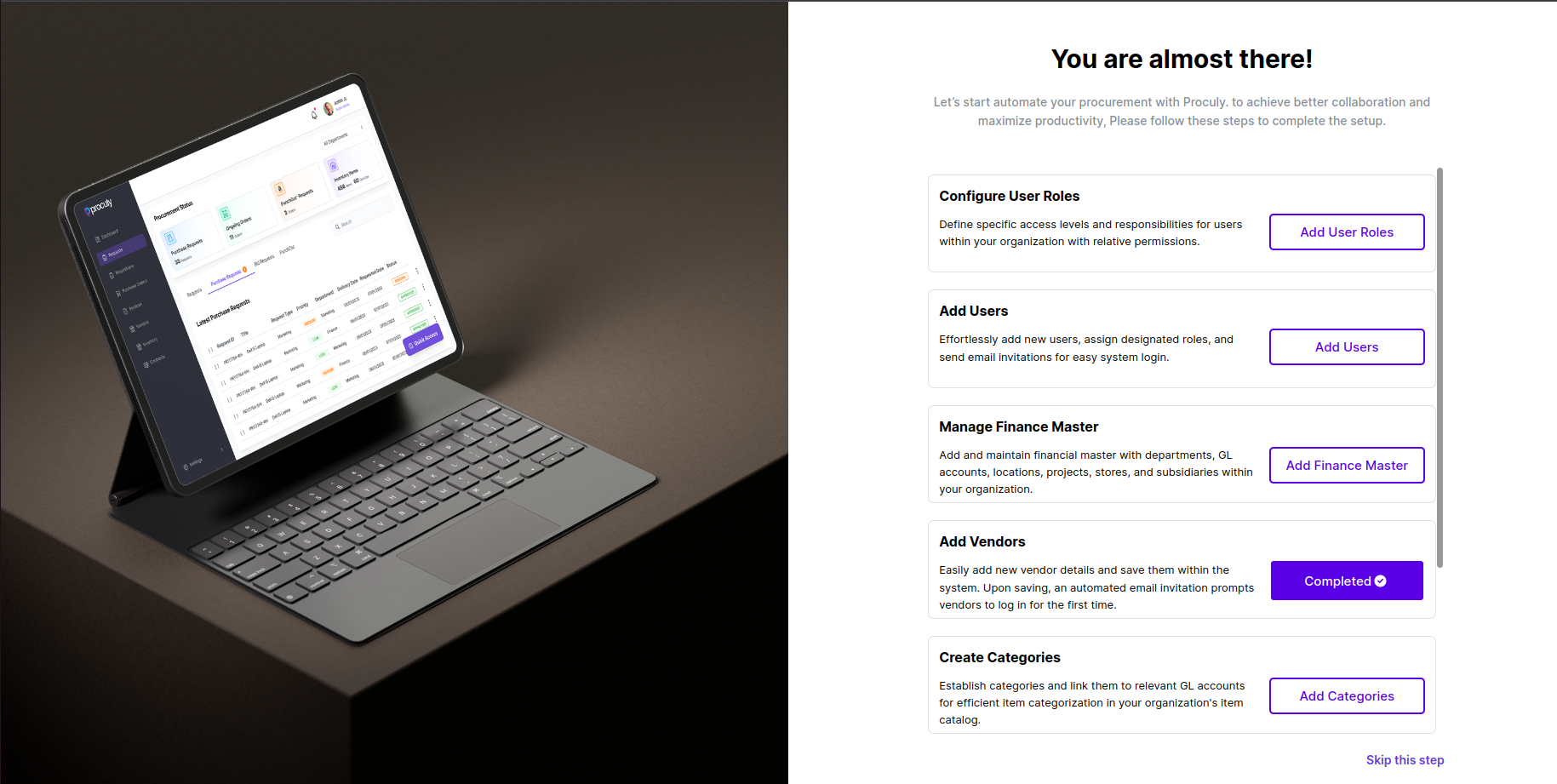
Skip this step
Skip this step
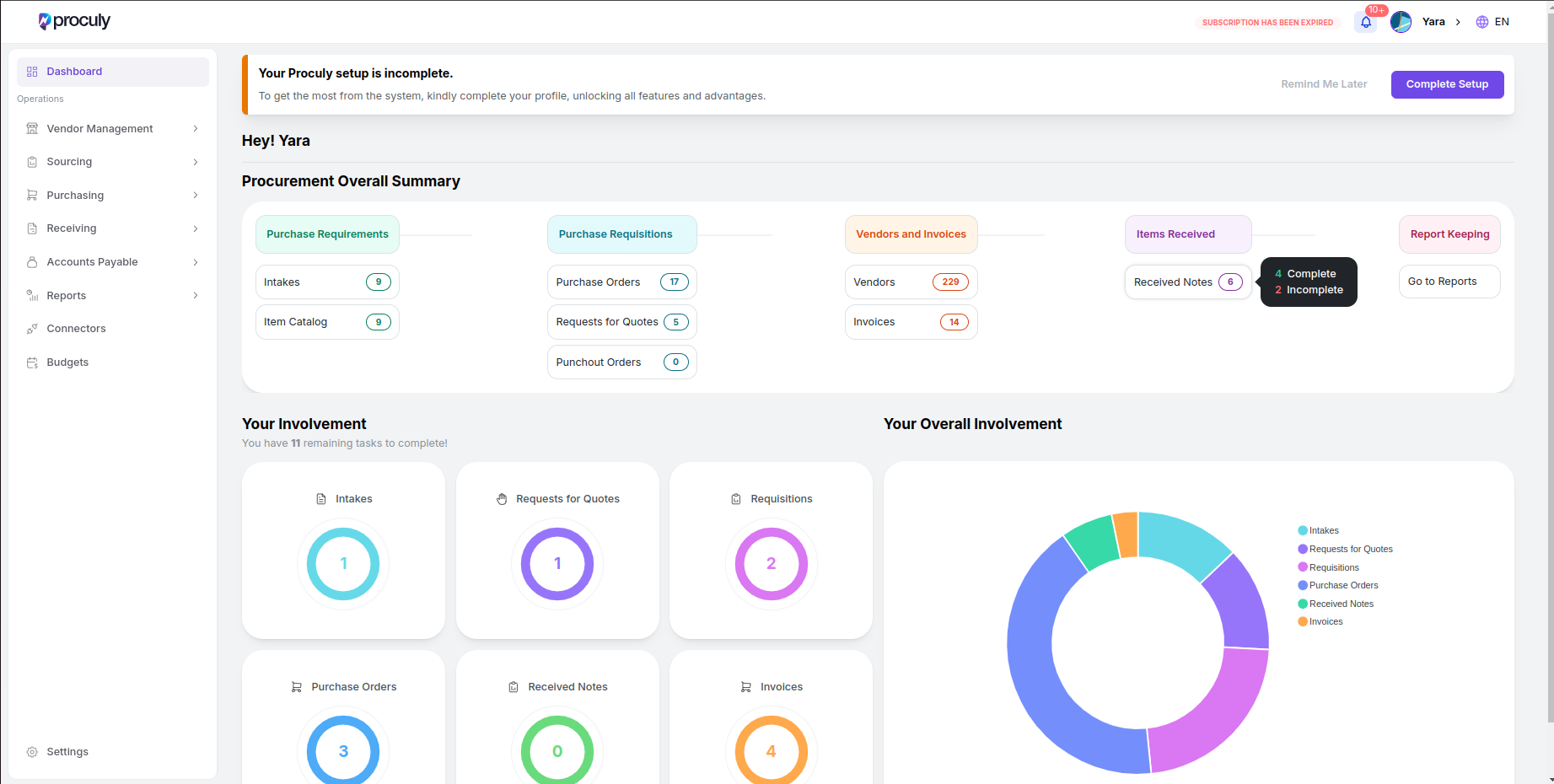
After clicking ‘Skip this step,’ you’ll be directed to your dashboard. This is your client dashboard,
your
control center where you can efficiently manage all aspects of purchase orders, vendors, requisitions, invoices,
and catalogs.
Setting up your account
After successfully completing the onboarding process, or skipping the step, you can navigate to your dashboard. Within this dashboard, you’ll have super admin access, which we’ll predominantly focus on for the sake of clarity in this documentation. Nevertheless, it’s crucial to understand that you can include sub-users in your account and define their access according to their roles. If the user skipped the onboarding step, the “Complete Setup” card will be visible at the top of the screen. The user can either click on “Complete Setup” to return to the onboarding page and see which settings remain to be completed or click on “Remind me later” to remove the card from the screen. A user can always use the Settings page to complete the remaining steps for setting up the organization’s account.Your dashboard will resemble the image above, offering a comprehensive and simplified overview of your account.
Creating and Managing User Roles and Users
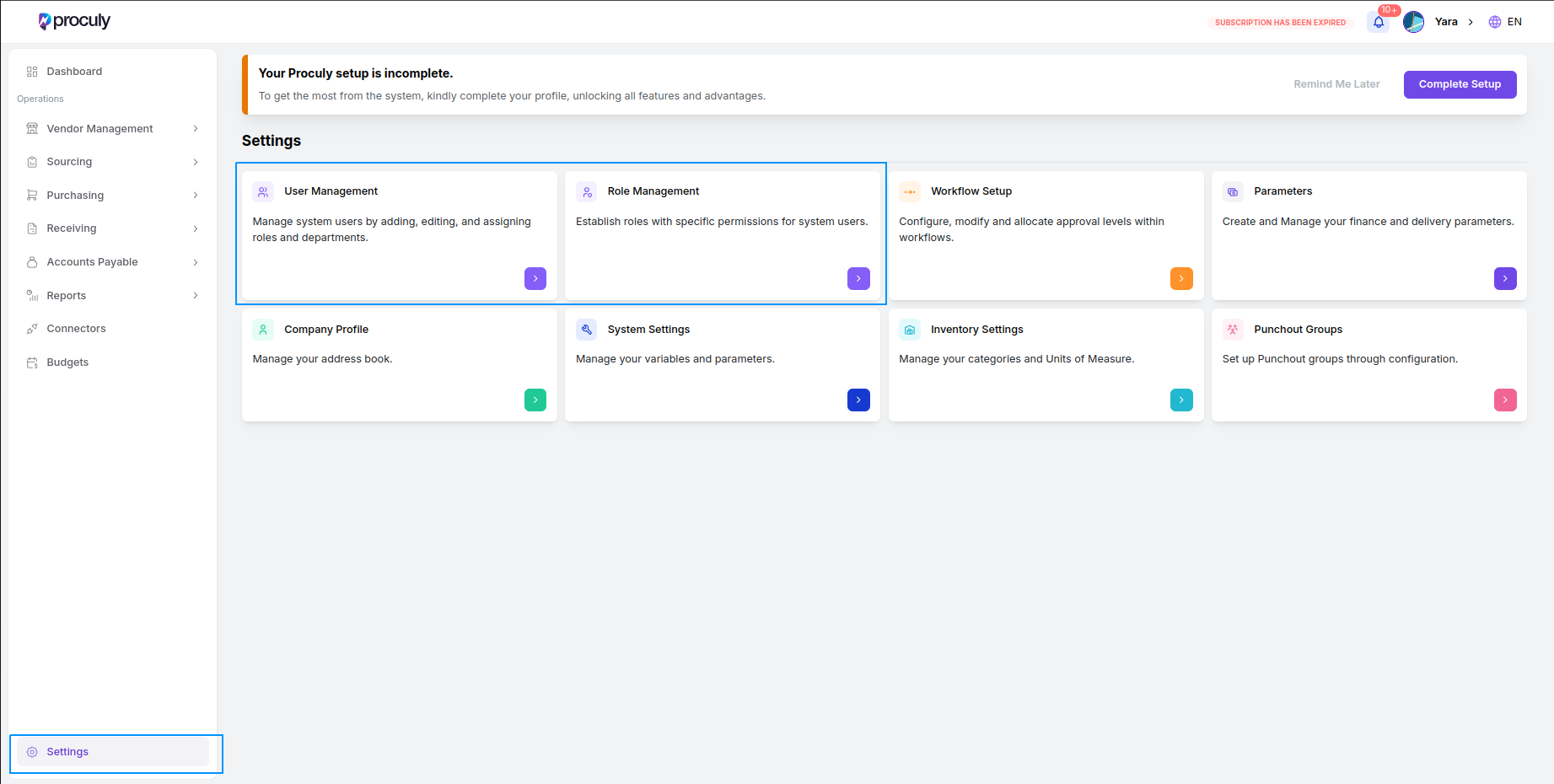
Effectively management of a procurement system involves the seamless addition and assignment of user roles. To enjoy the full advantages of Proculy, start by creating user roles. To add new users and manage roles, first navigate toSettings > Role Management to create and assign different user roles. In Role Management, you can create new roles with specific permissions tailored to your organization’s needs. After defining the roles, go to Settings > User Management to add new users. Here, you can assign the appropriate roles to each user, ensuring they have the necessary permissions to perform their duties.
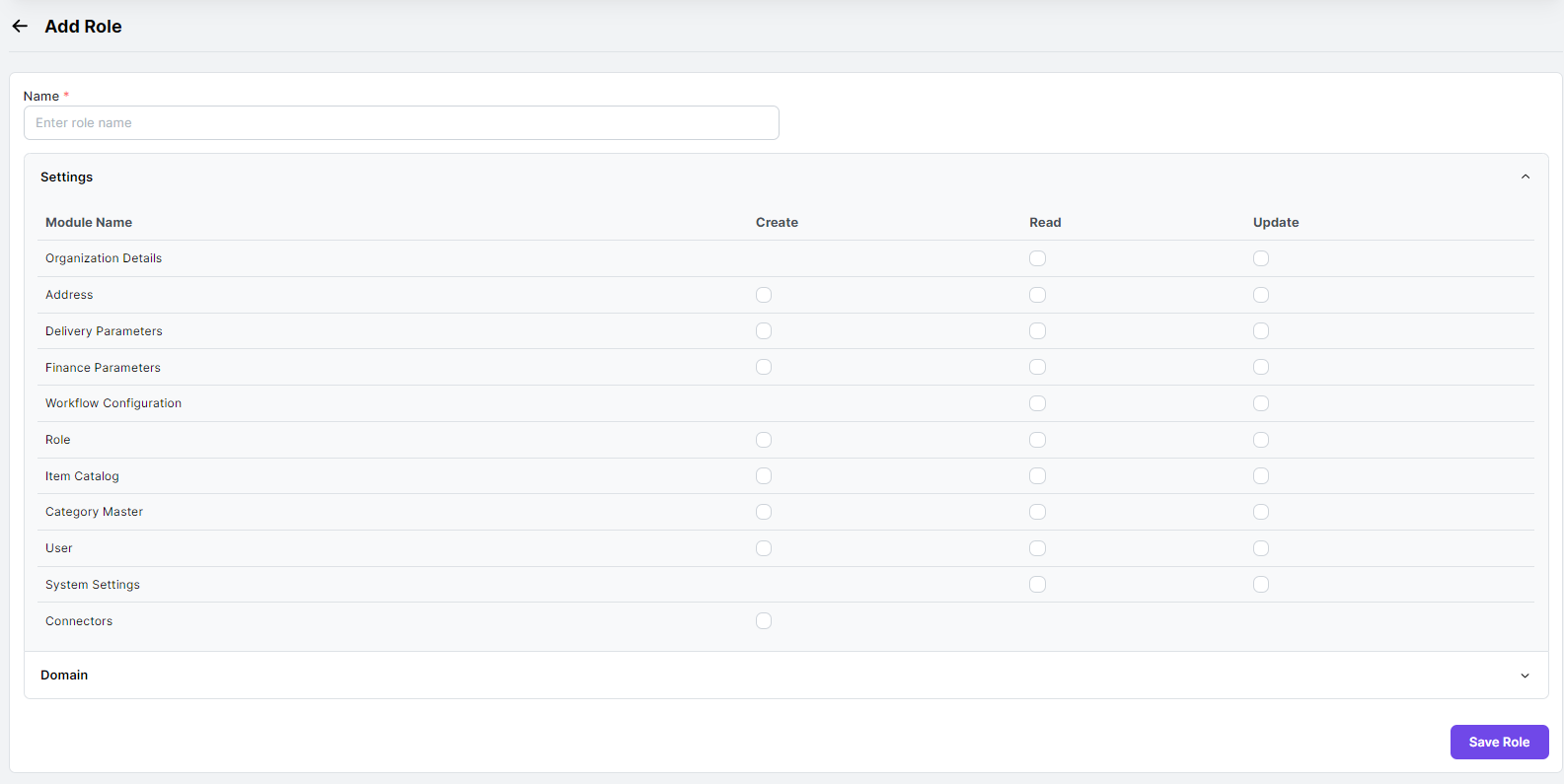
Save Role
Save Role
Save to add the new role to the list.
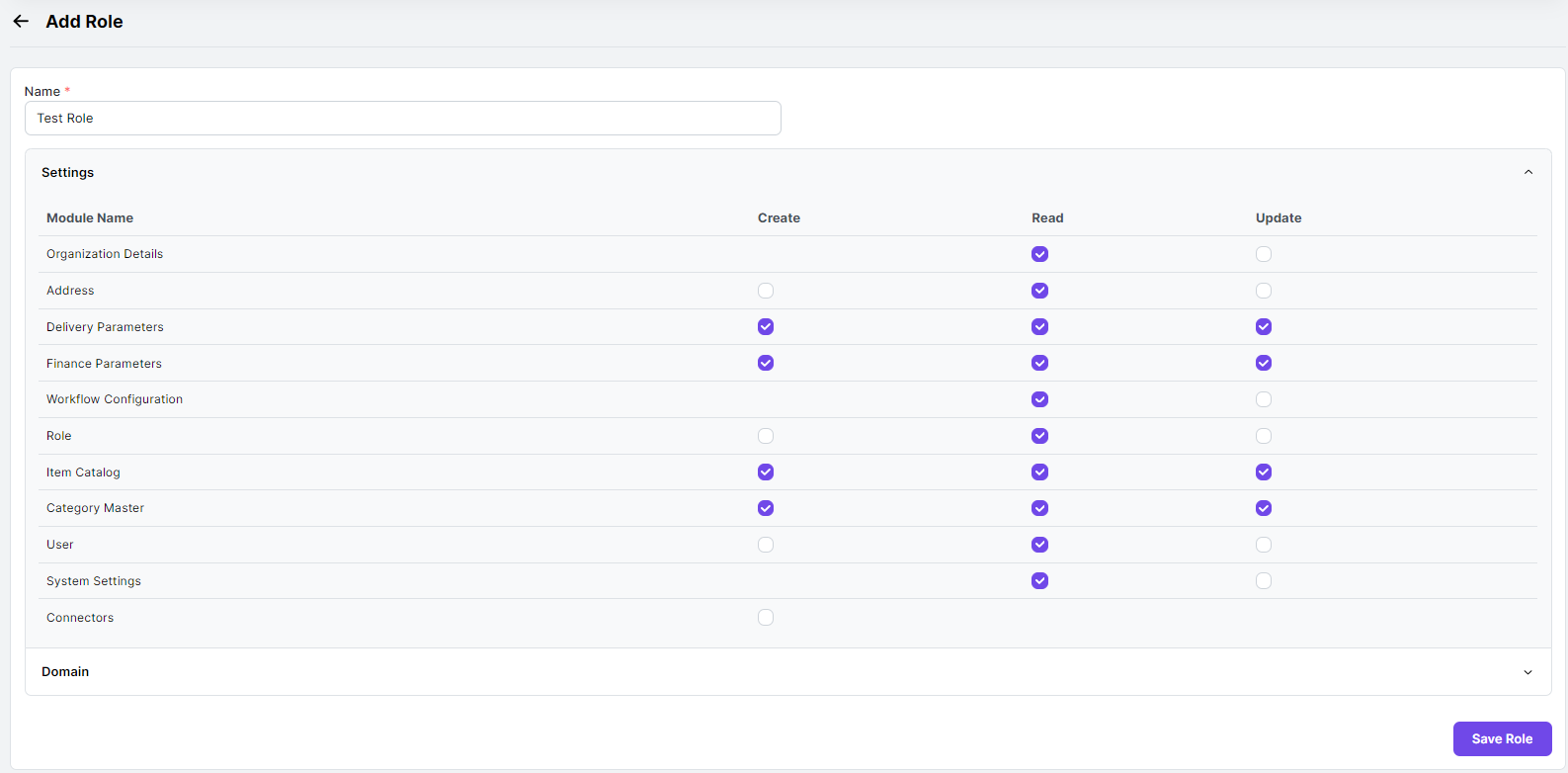

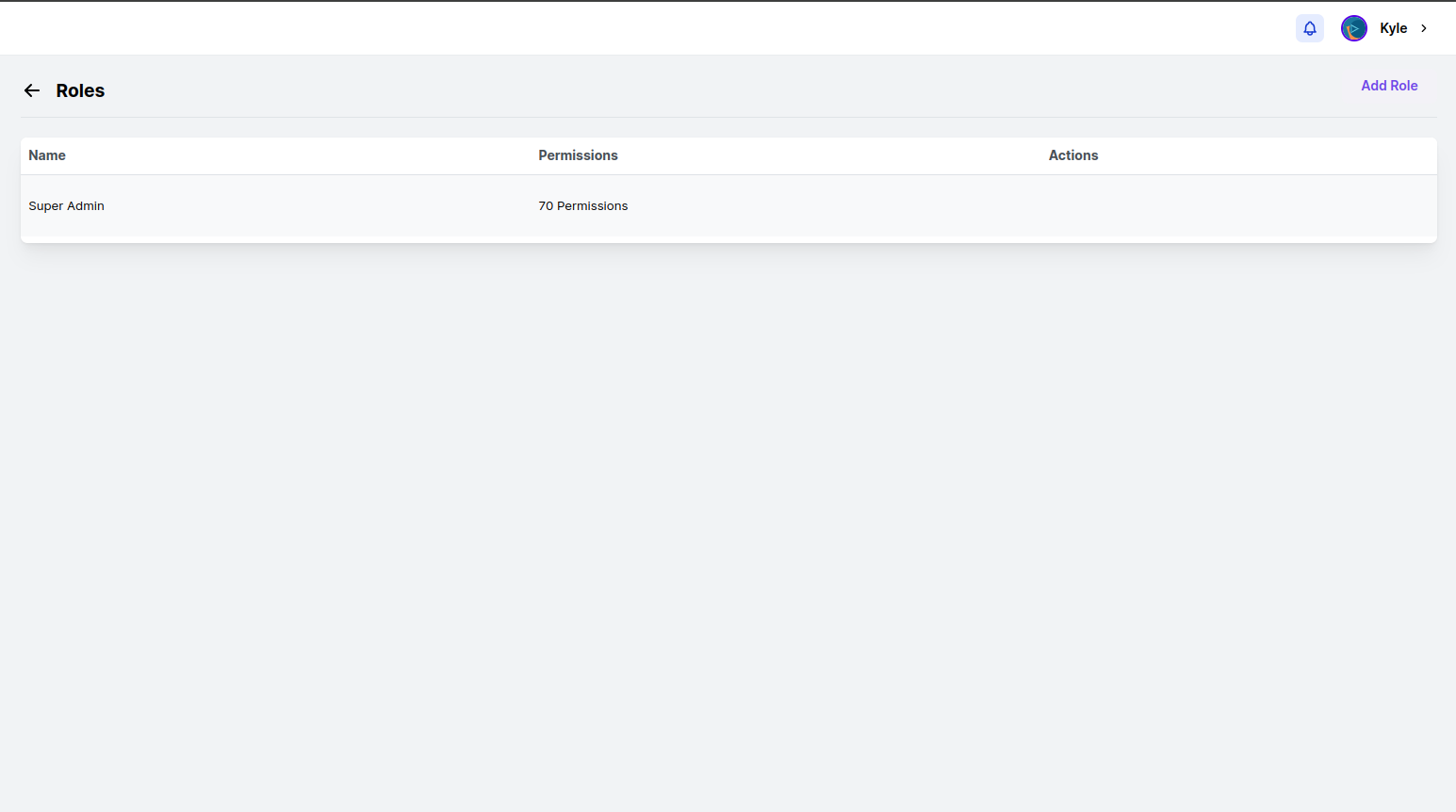
The new role you created is now visible on the Roles page. You can edit it and adjust user permissions as needed.
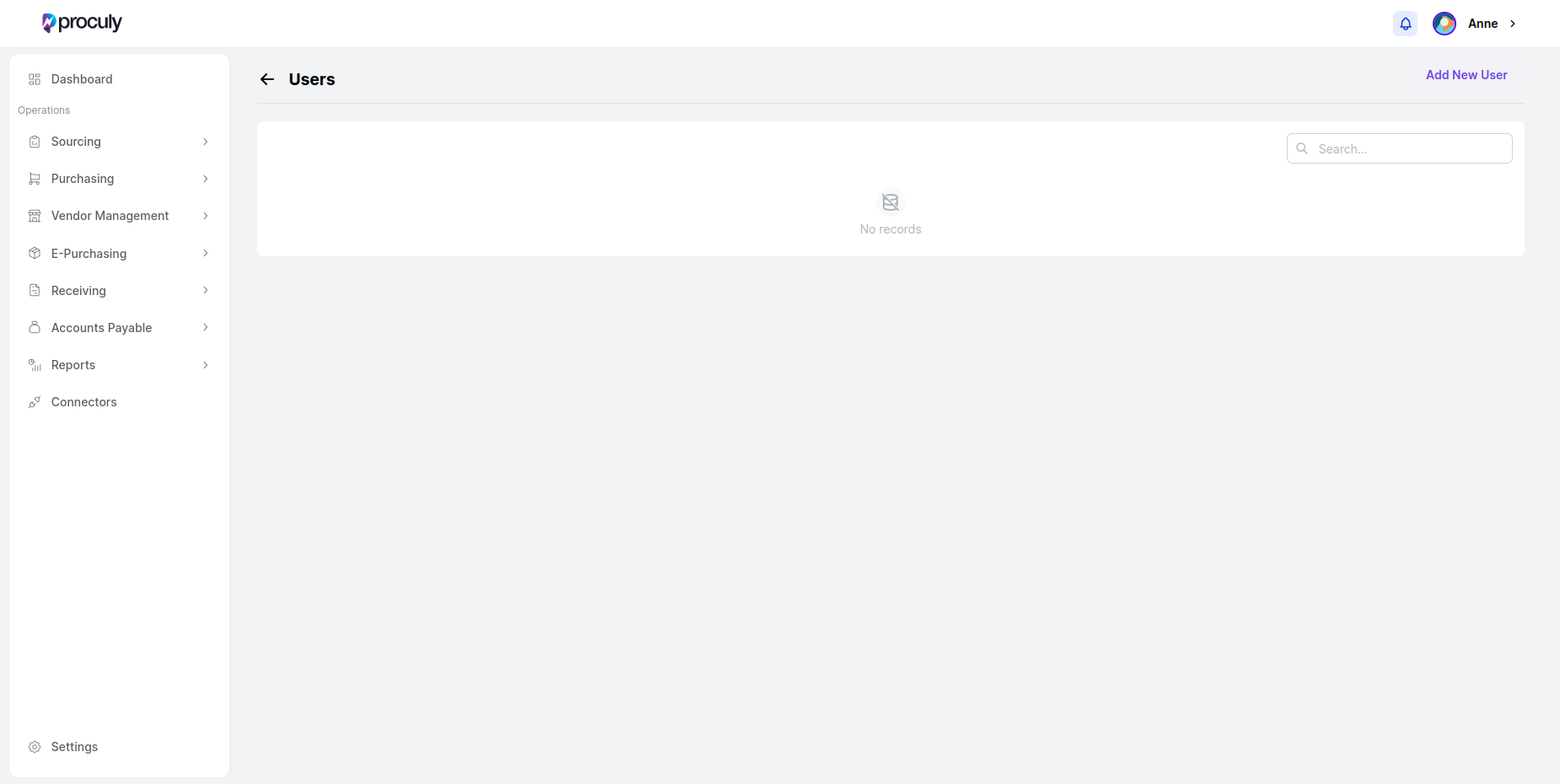
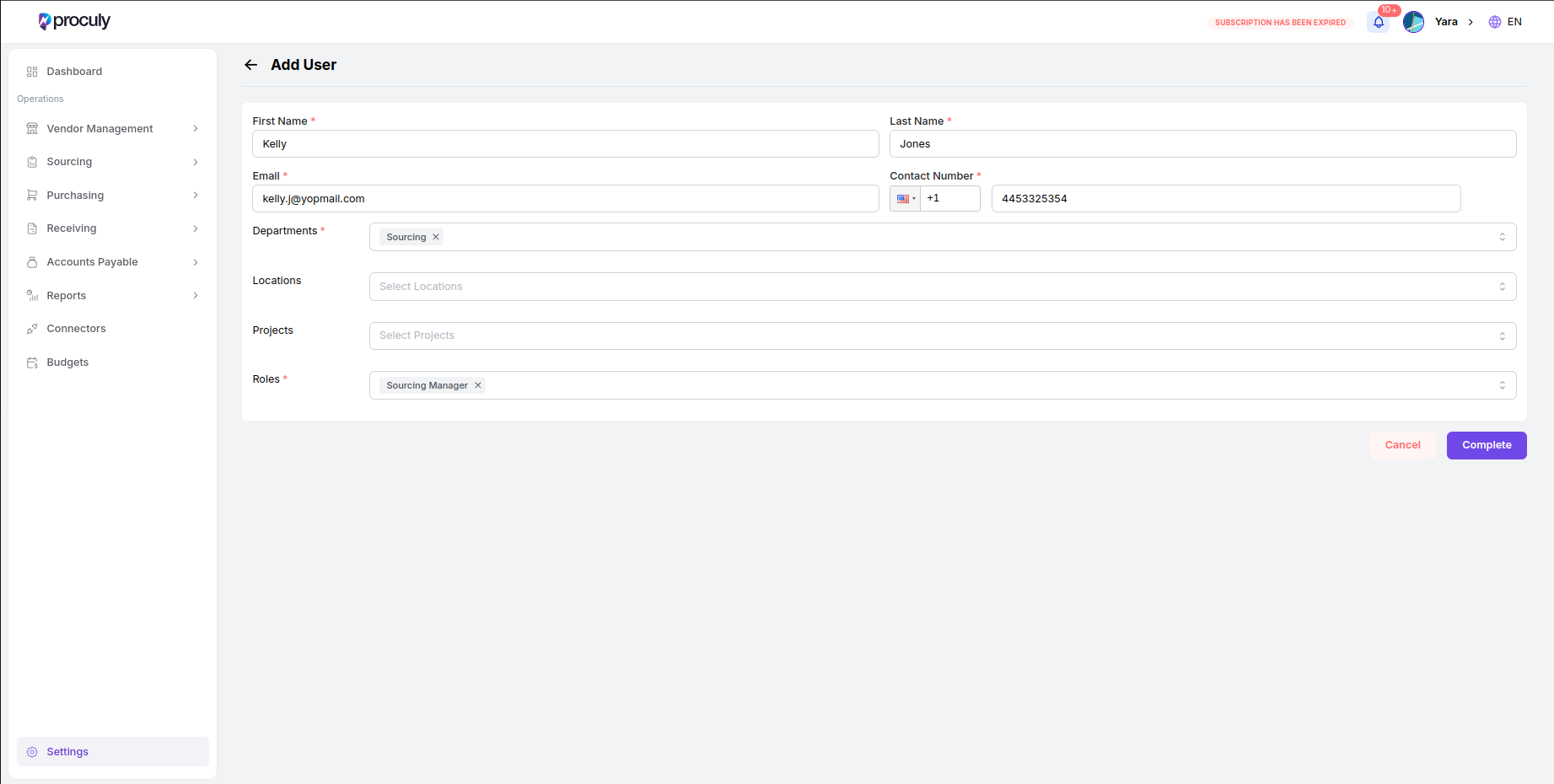
Add New User
Add New User
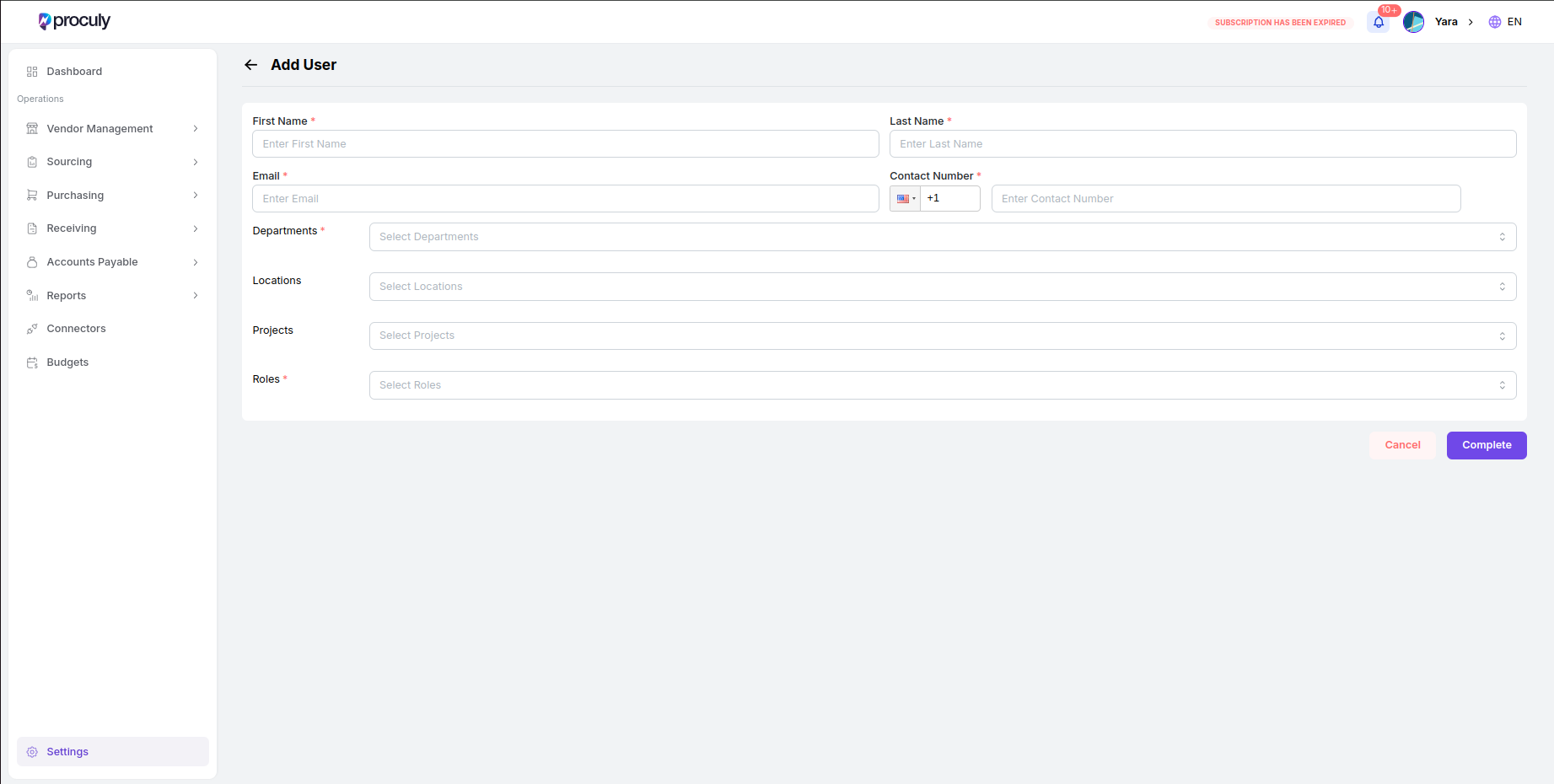
Click on “Add
New
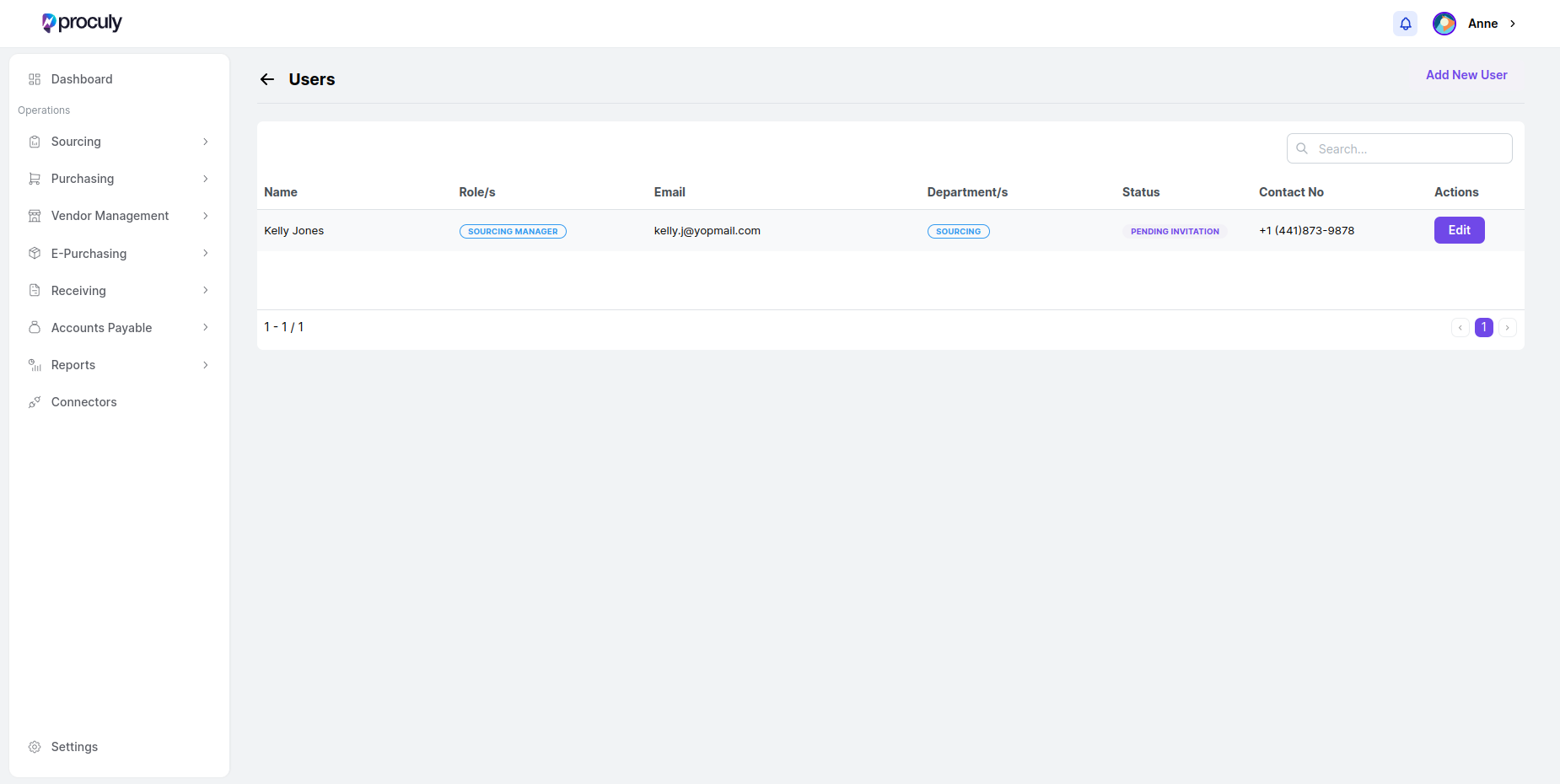
User” and you will see the Add User page where you can fill all mandatory details of a user.
Categorizing Procurement
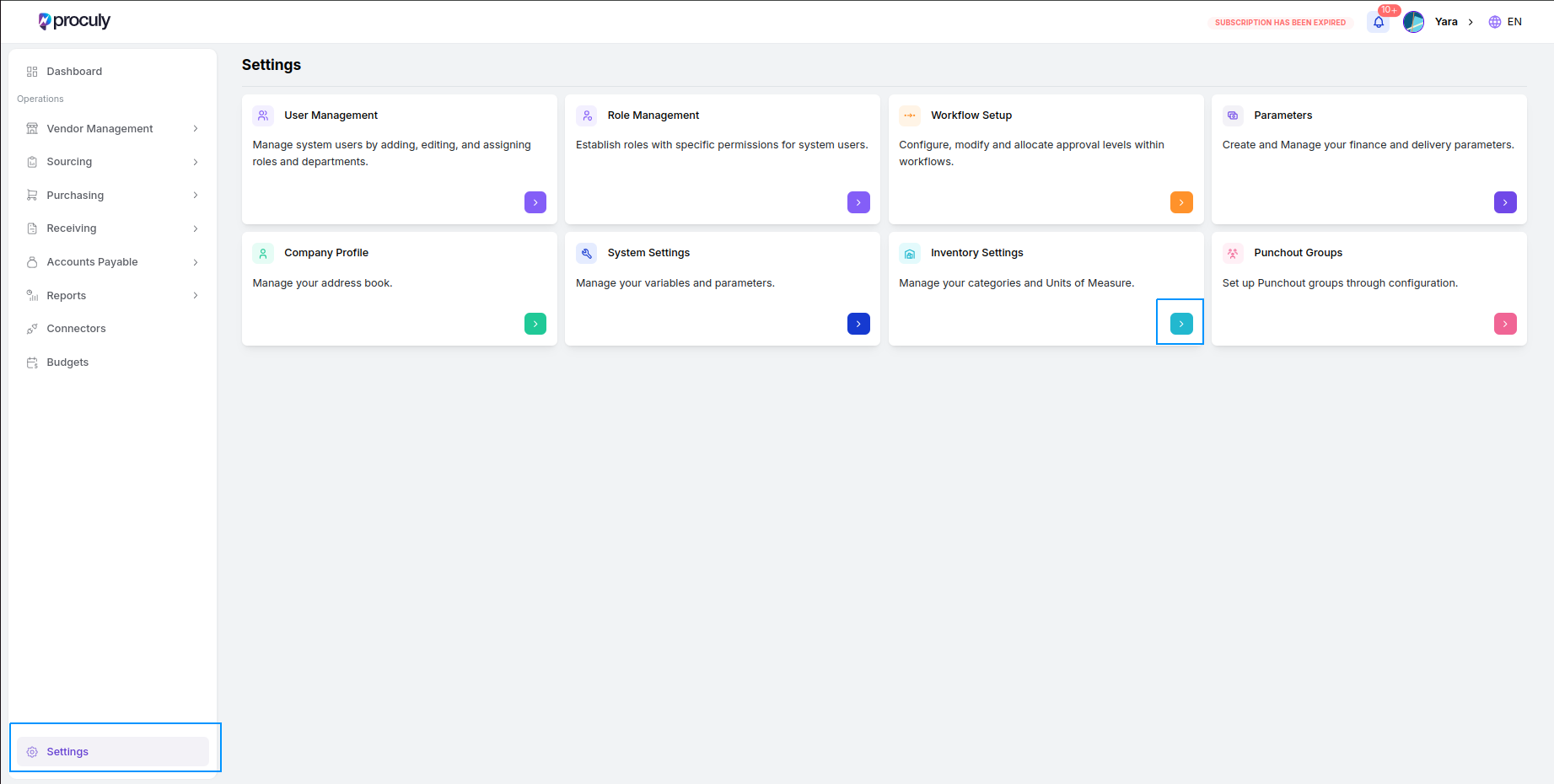
Category Master Overview In Proculy, users can manage a list of categories to organize items in the item catalog. These categories help in linking items to GL accounts, providing a structured approach to inventory management. Accessing the Category Master To access the Category Master page, navigate through the main menu:Settings > Inventory Settings > Category Master.
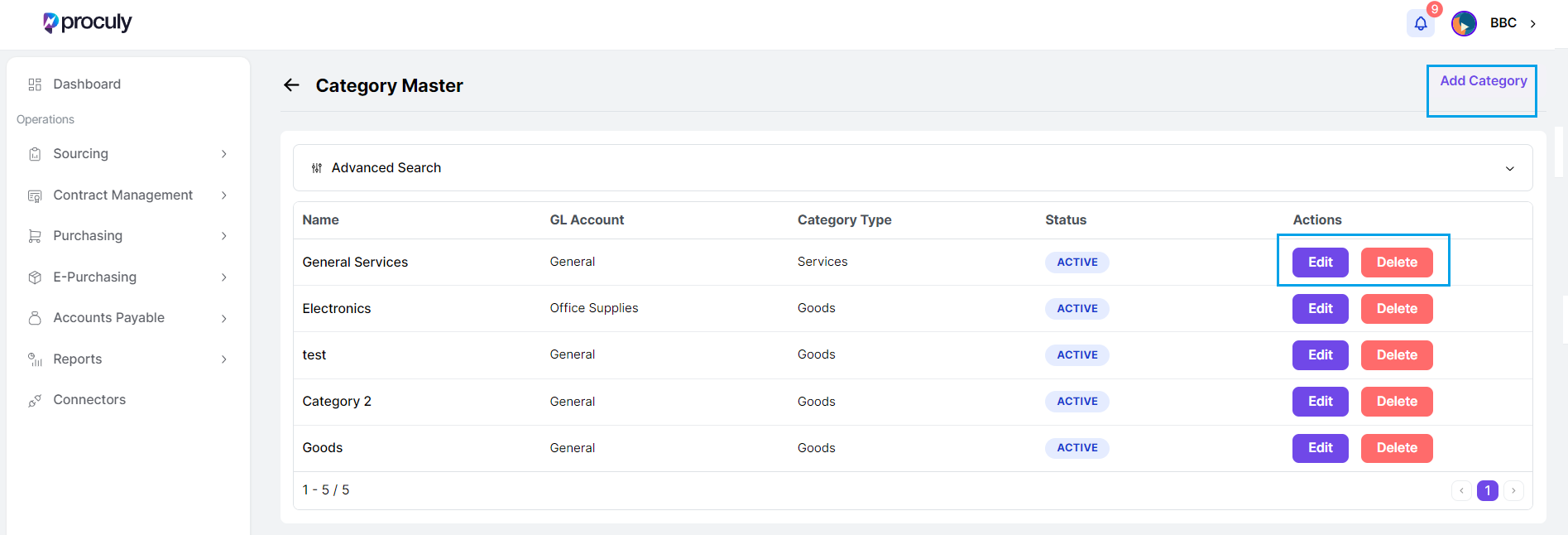
On this page, all added categories are listed, and users can add, edit, or delete categories as needed.
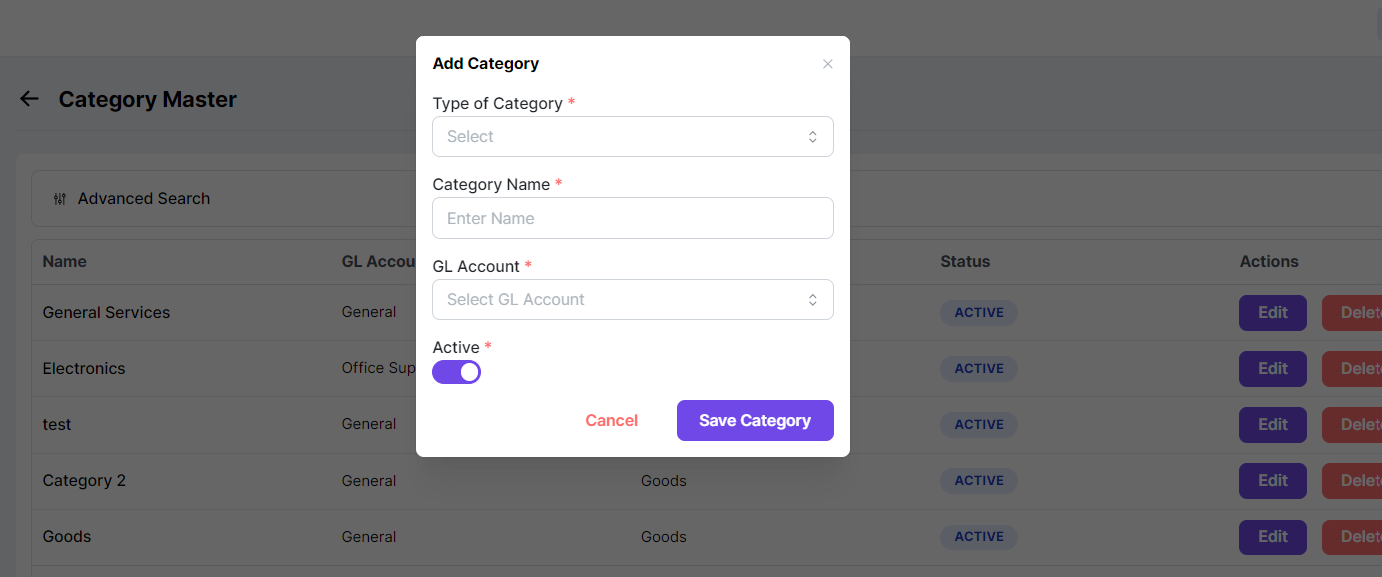
Active/Inactive Toggle
Use the Active/Inactive toggle button to define the status of the category. Only active categories will be
available in the Category dropdown options in procurement documents.
Editing and Deleting Categories
Use the “Edit” and “Delete” buttons in the actions column to modify or remove categories. Note that categories
already linked to items cannot be deleted.
Creating and Managing Item Catalog
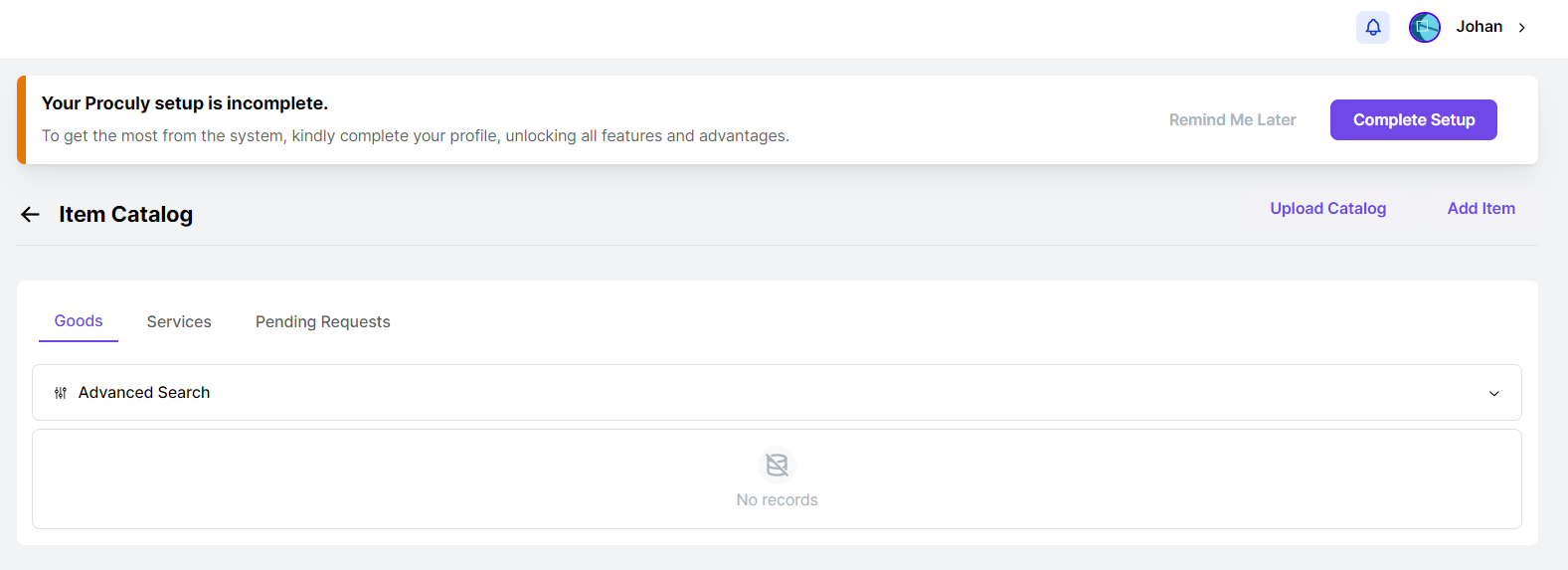
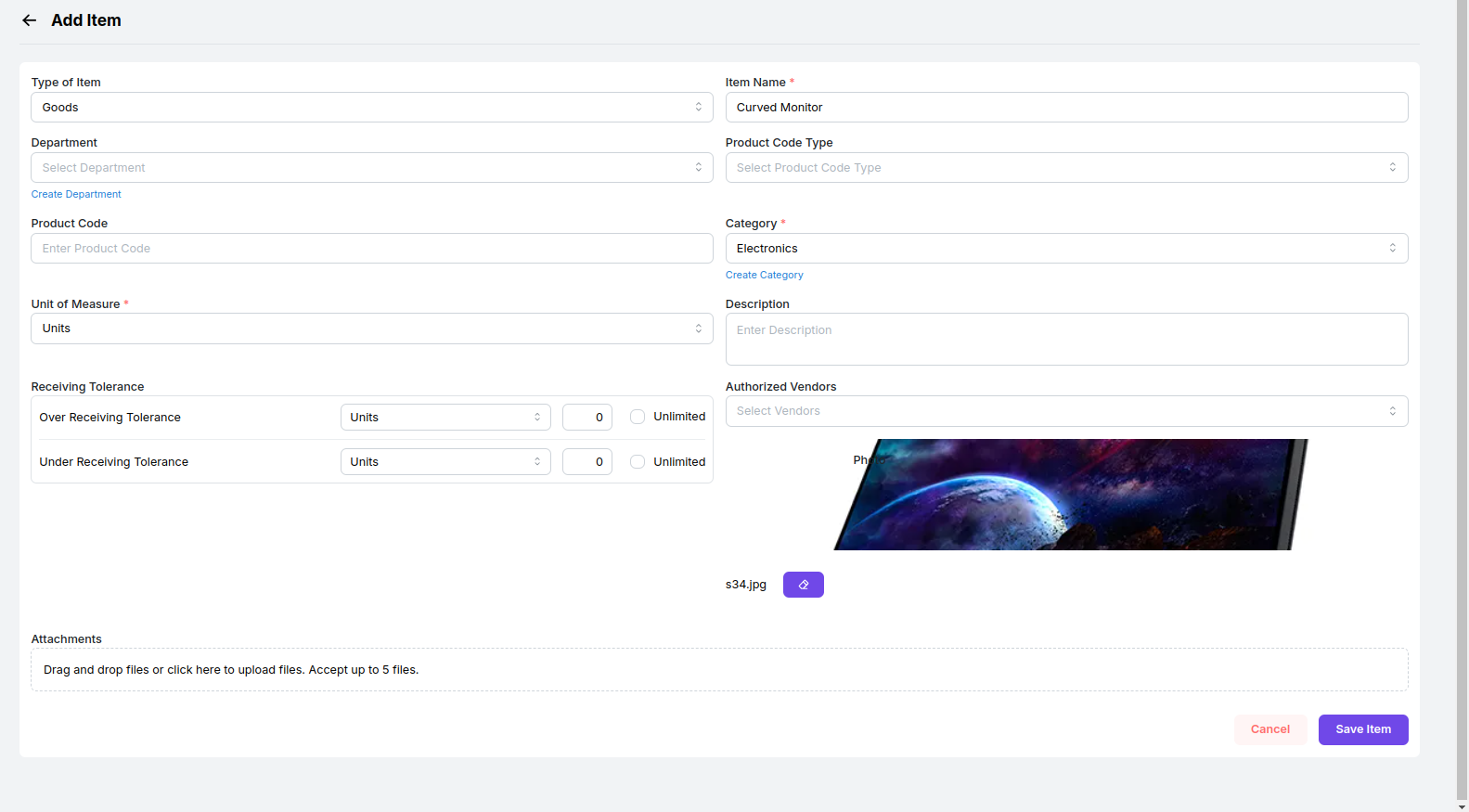
Maintaining an Item Catalog is crucial for efficient procurement management. It allows your organization to manage a comprehensive list of frequently purchased items, complete with detailed specifications. This simplifies the process of creating intakes or requisitions, as users can easily select items from the catalog without needing to know the supplier or the exact price. Additionally, the item catalog can link each item to one or more authorized vendors, making vendor selection straightforward during purchase order creation. This also facilitates the creation of requests for quotes to identify the best vendors, ensuring cost-effective and streamlined procurement. To add items to the item catalog, navigate through the usual path:Menu > Purchasing > Item Catalog. This directs you to the item catalog management page, where you can efficiently add and manage your inventory items. This process ensures that your catalog is up-to-date and comprehensive, facilitating smooth and streamlined procurement activities.

Save
Save
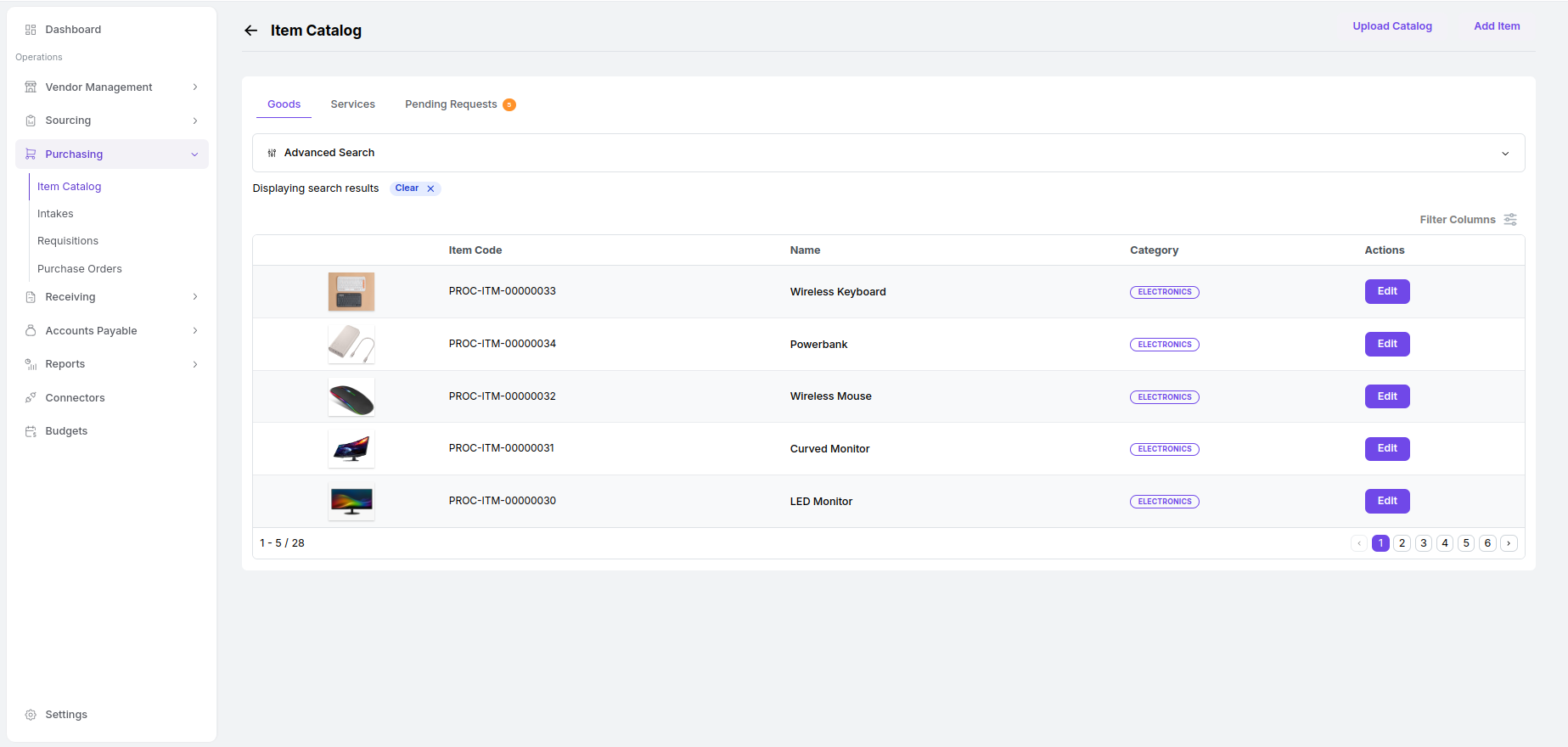
Click on “Save Item” to add the new item to the list. After saving, the item catalog table will be
displayed,
presenting all the relevant information.
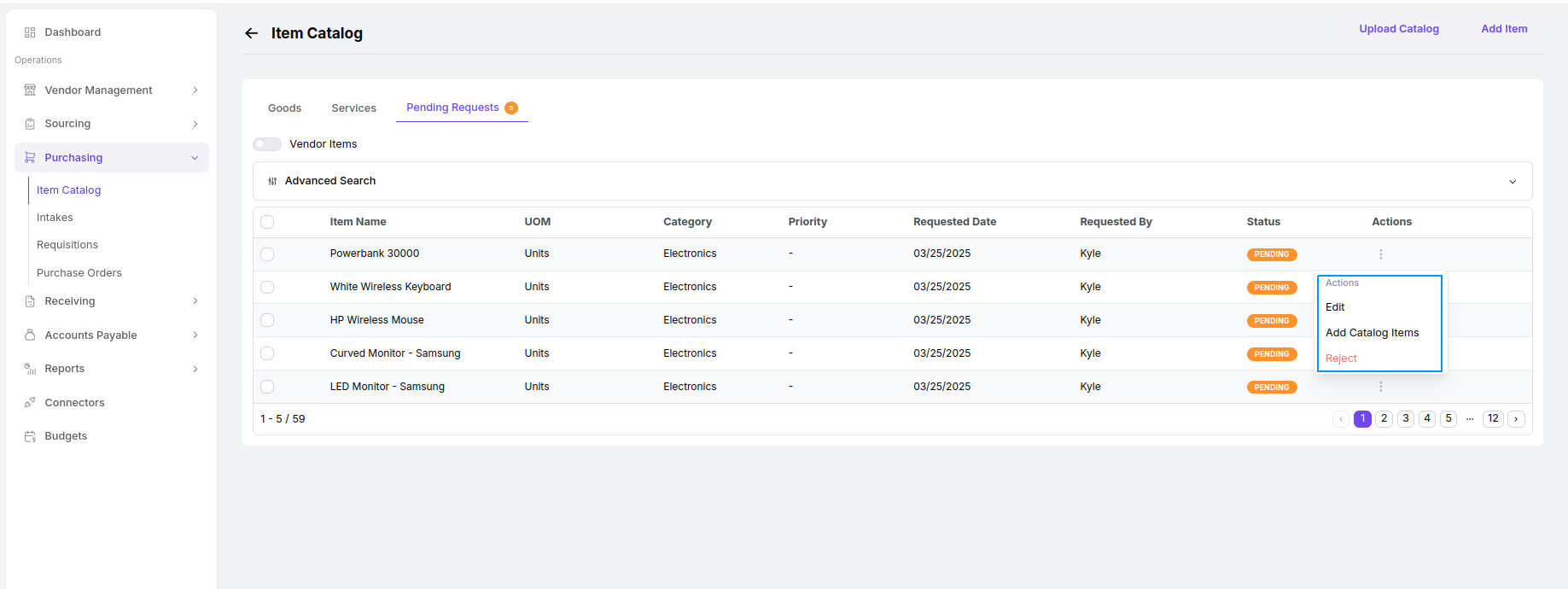
Edit
Edit
Use the Edit button to update any data of a saved item.
Bulk Add or Bulk Reject
Bulk Add or Bulk Reject
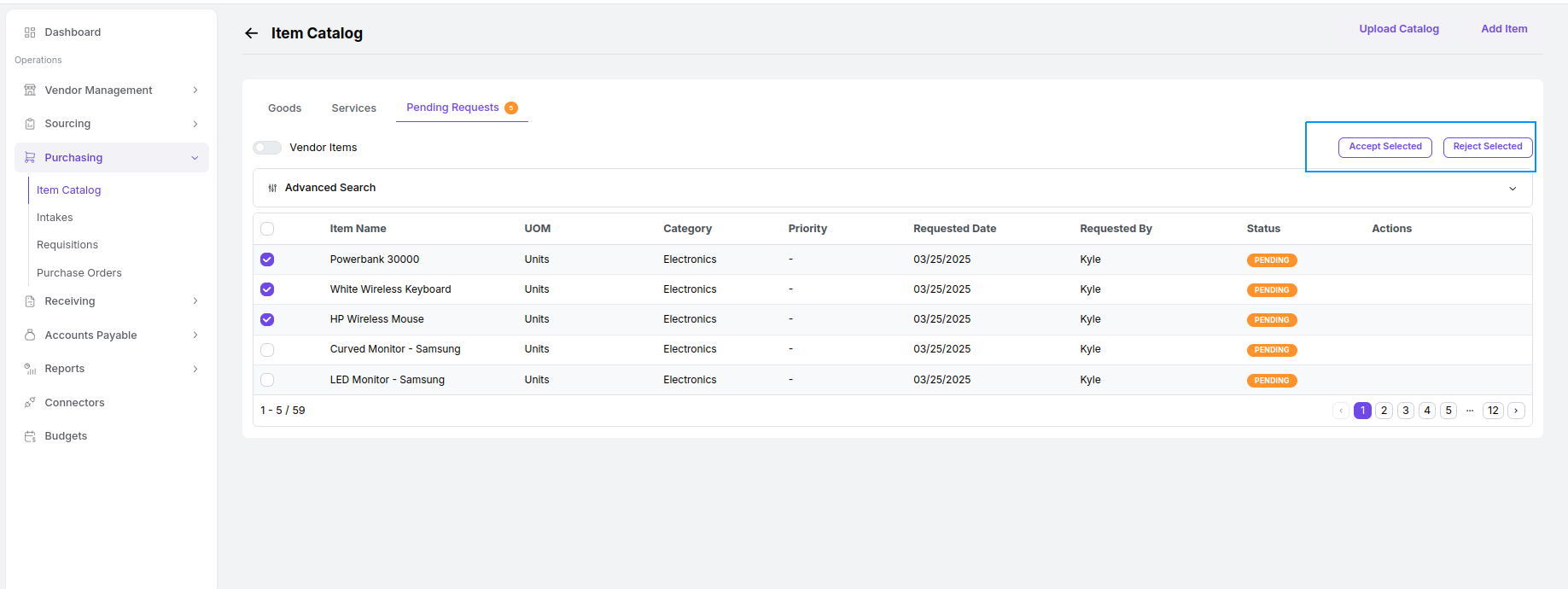
Alternatively, you can select multiple items with the checkboxes to bulk add or bulk reject them. Accepted
items will be added to your company’s Item Catalog.
Archived Items
Archived Items
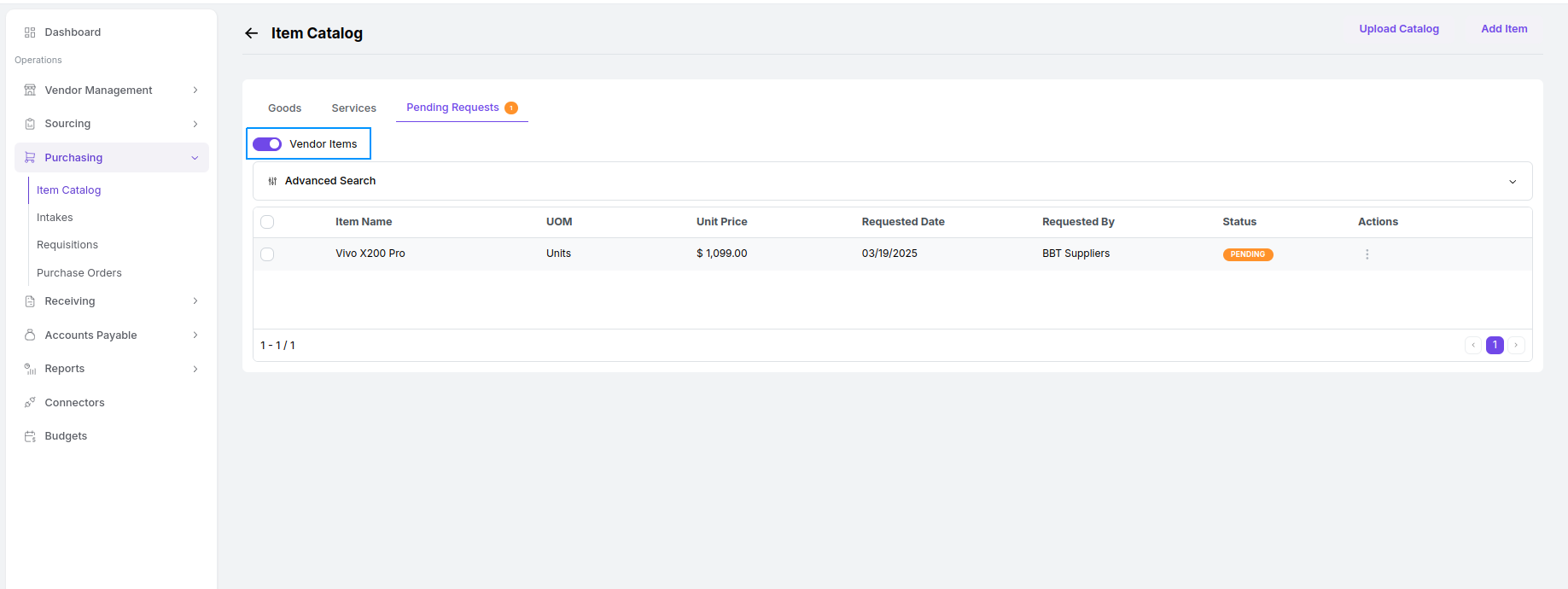
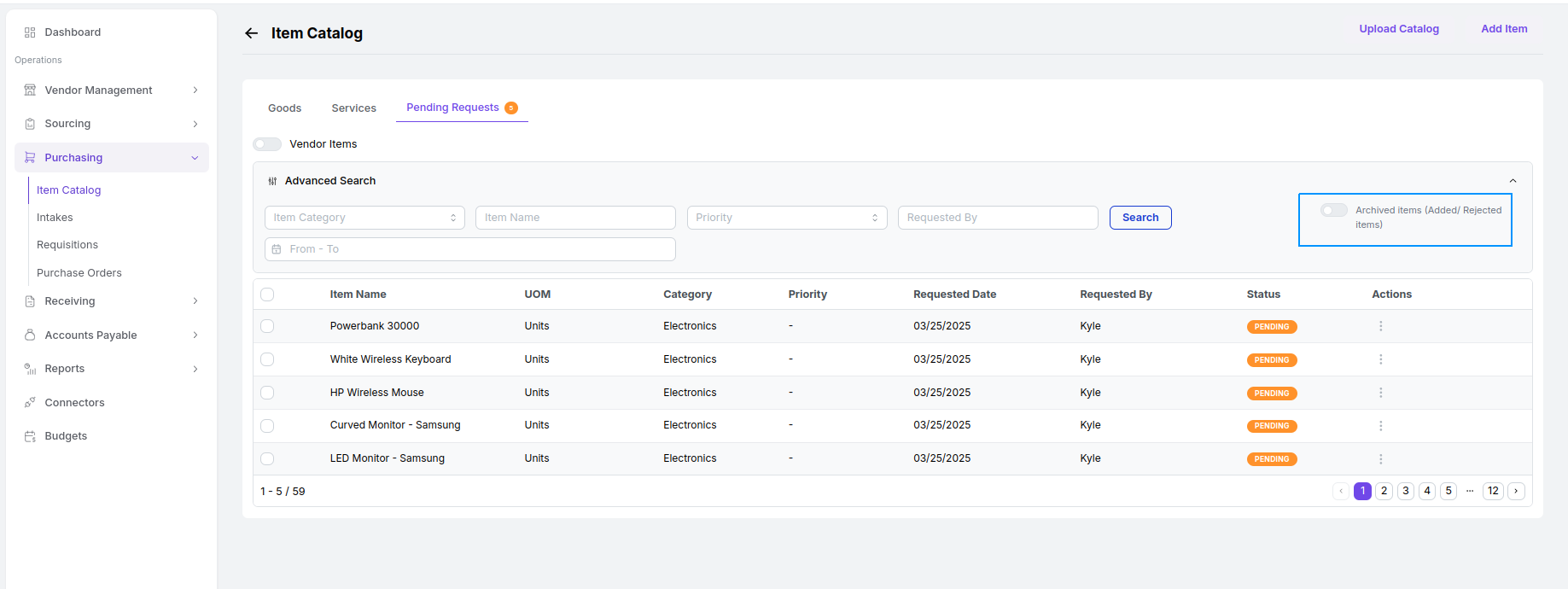
Toggle ‘Archived Items’ to view a list of previously approved or rejected items in the tables.
Creating and Managing Vendors
In Proculy, you can access a list of vendors who have registered on the platform and also add your own vendors. To view the vendor list, navigate to the main menu on the left side, click on ‘Vendor Management,’ and select the “Vendors” submenu, where all registered vendors are displayed.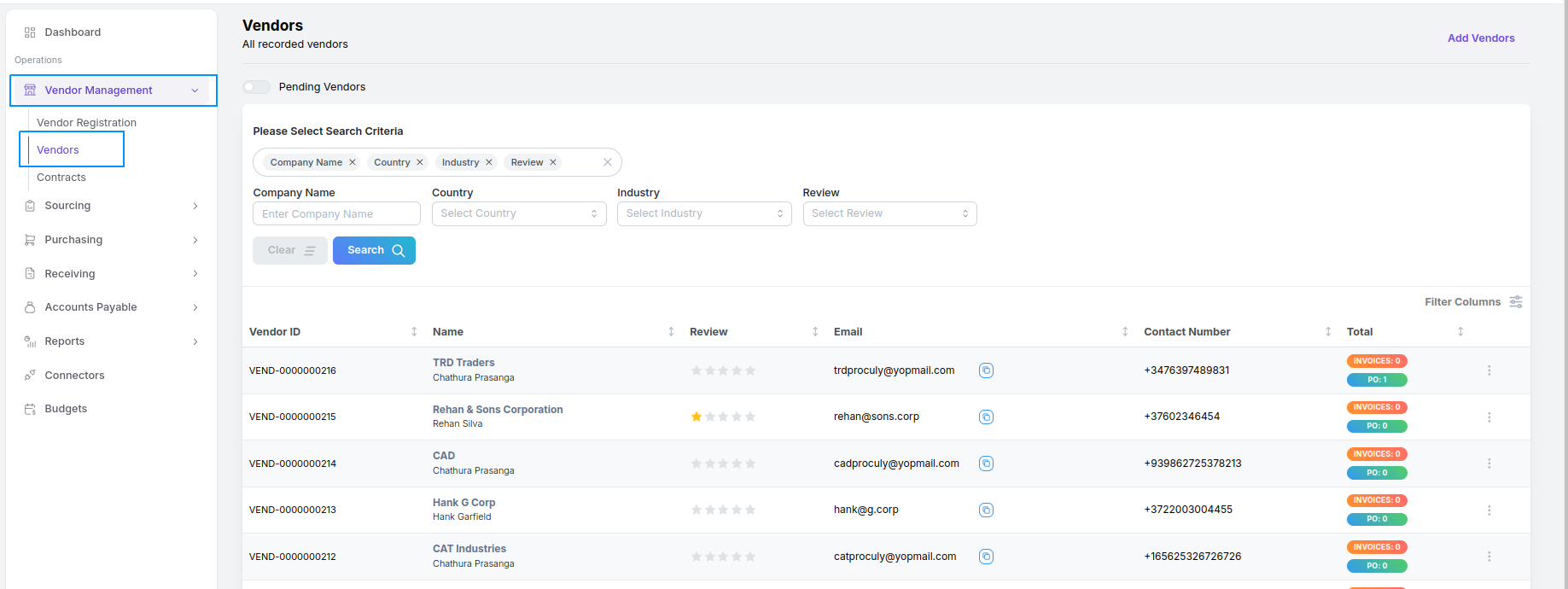
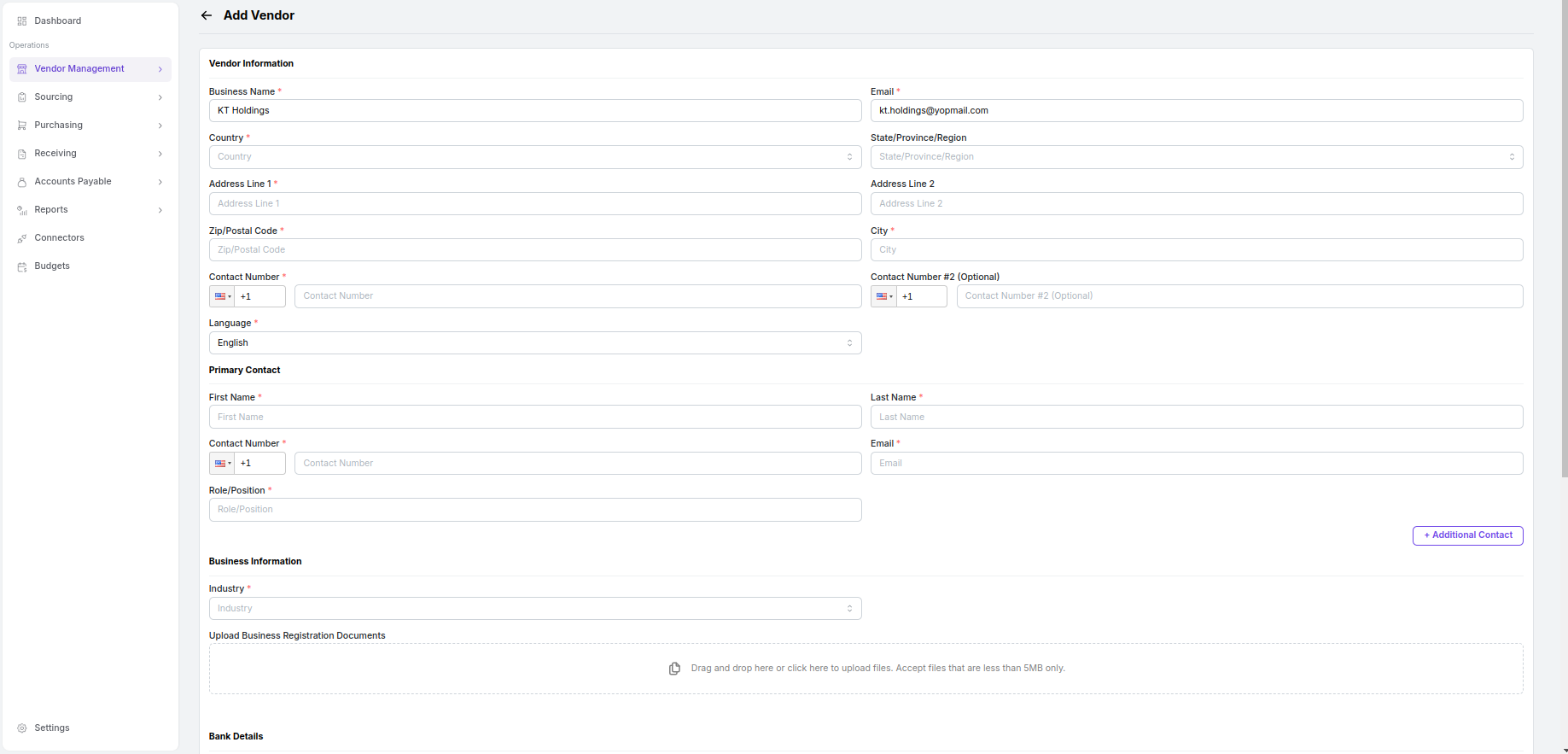
Vendor Management > Vendor Registration or Vendor Management > Vendors > Add Vendors. A pop-up will appear, allowing you to enter the vendor’s business name and email.

Edit
Edit
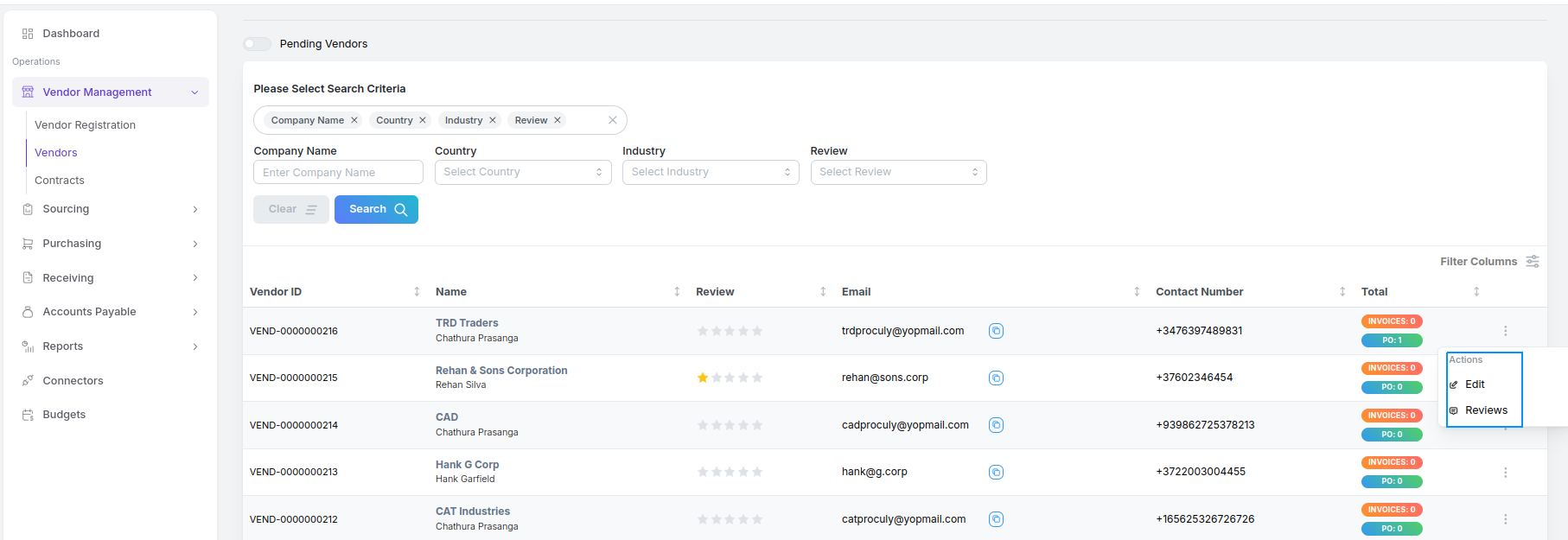
Information of any saved vendor can be edited using “Edit” in action options for a vendor in the Vendors
page.
Reviews
Reviews
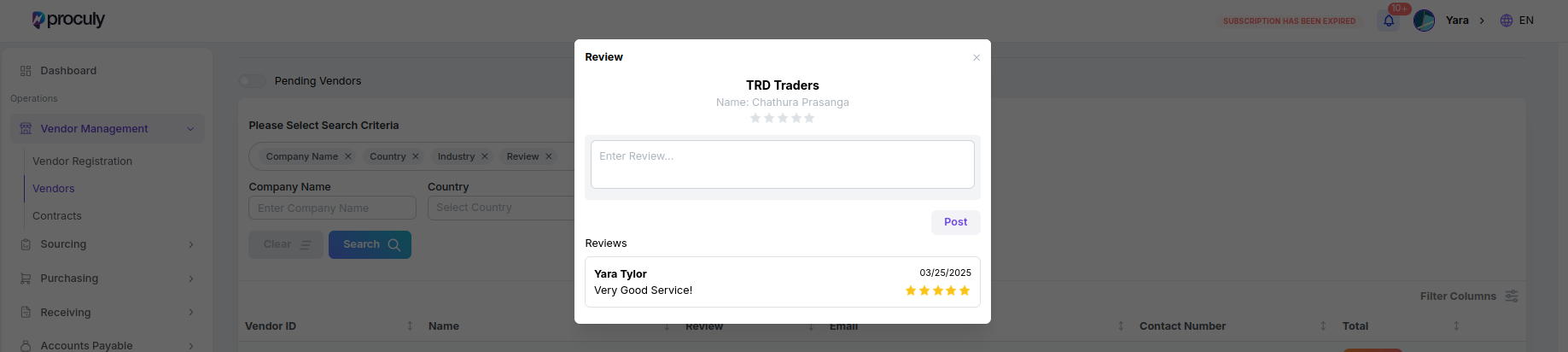
You can view and add reviews for a vendor by using “Reviews” in action options for a vendor.
Setting up Finance Parameters
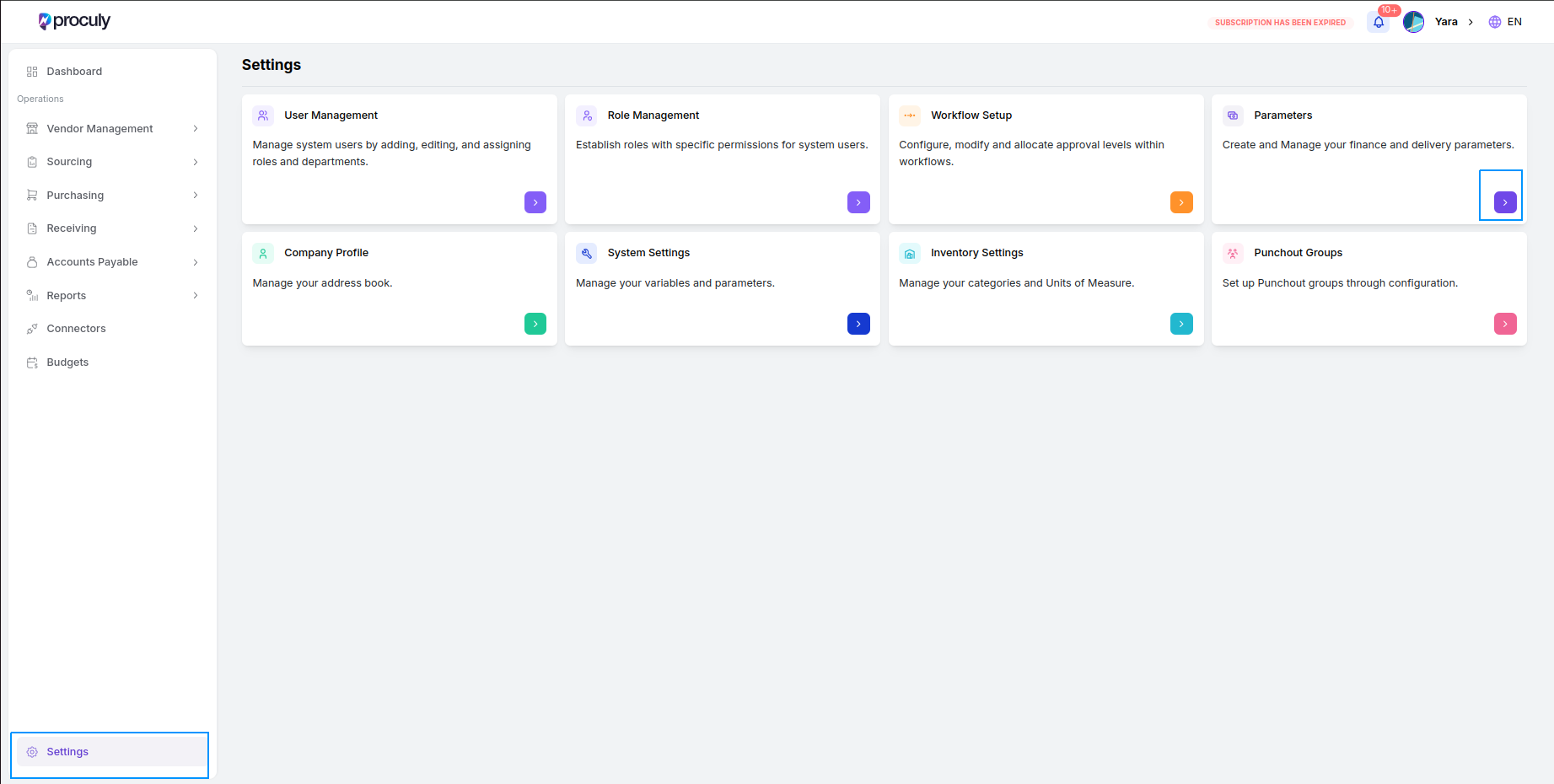
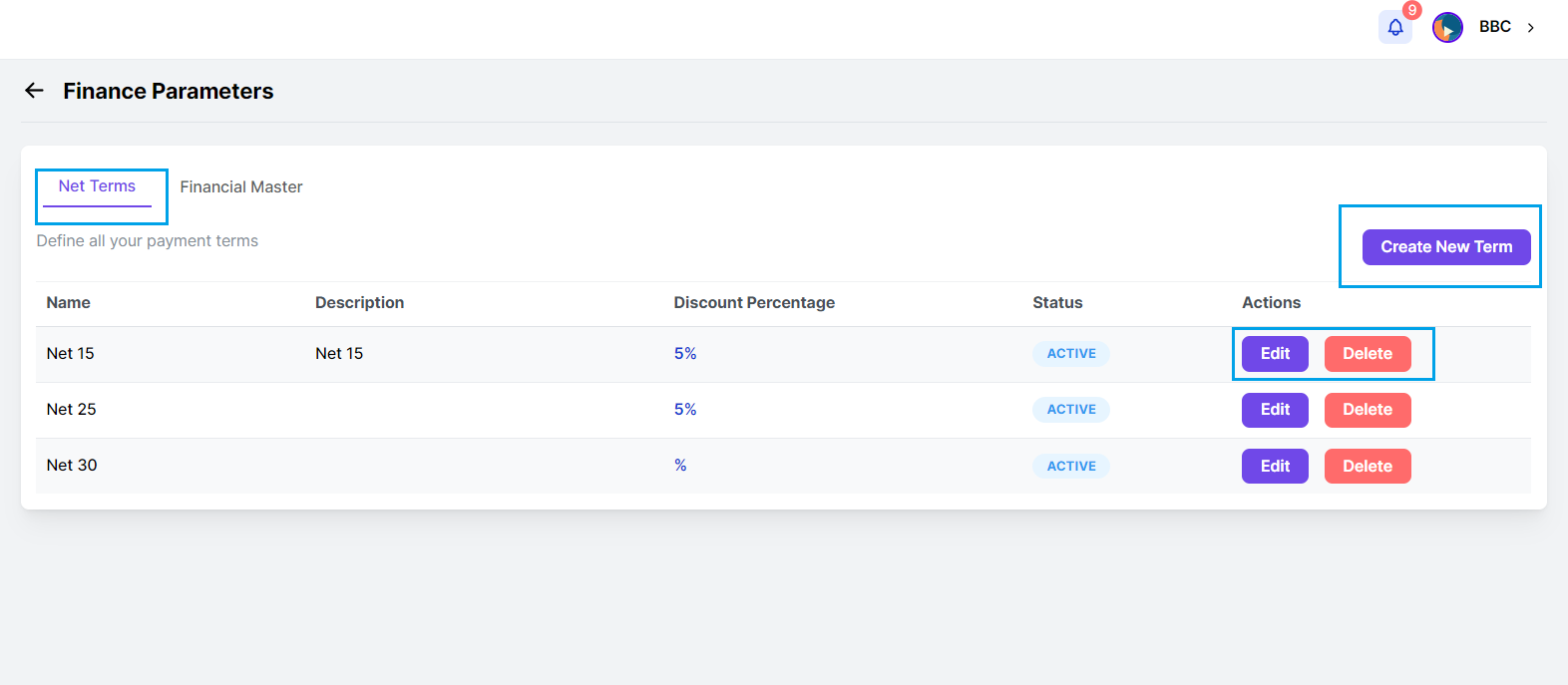
Settings > Parameters > Finance Parameters > Net Terms.
On this page, all defined net terms (payment terms) are displayed in a tabular view. Users can add, edit, or delete net terms as needed.
Create Net Term
Create Net Term
Adding a New Net Term: Click on the “Create Net Term” button to
open a pop-up window. Enter the required data and click on the “Save Term” button to save the new net term.
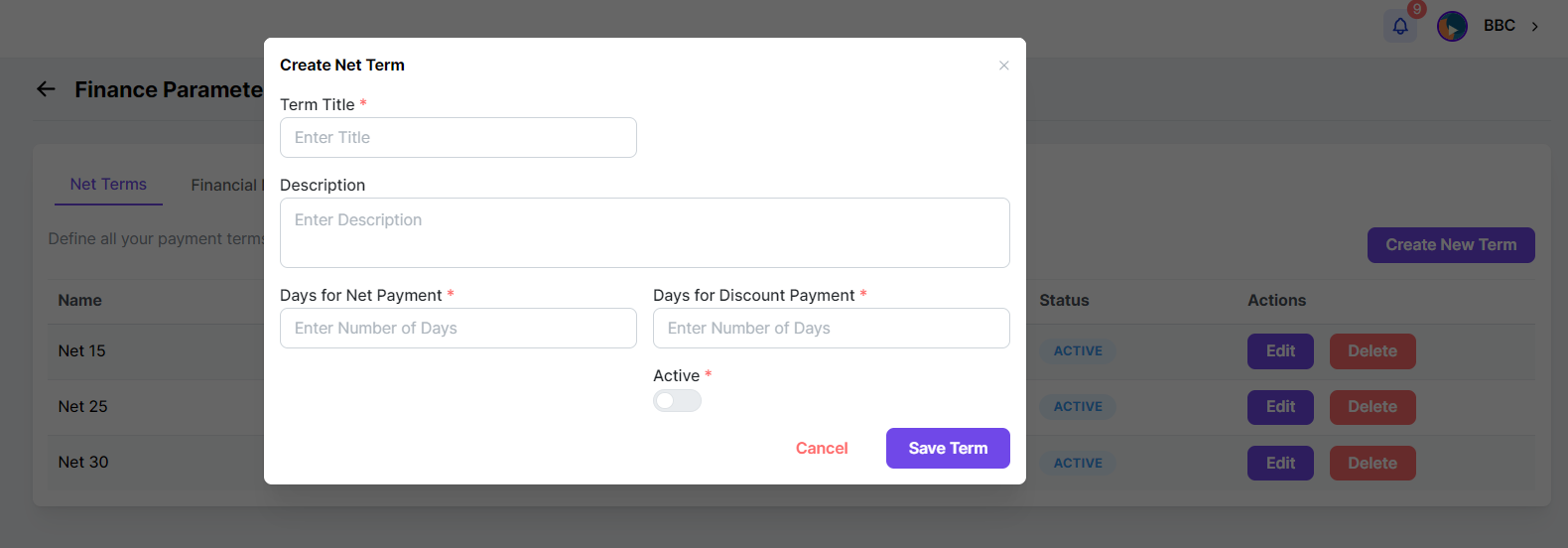
- Days for Net Payment: Specifies the number of days given to the buyer to make full payment for a PO.
- Days for Discount Payment: Specifies the number of days given to the buyer to make full payment for a PO and receive a discount on the bill. If this is greater than 0, an additional field for the discount percentage will be enabled.
- Active/Inactive Toggle: Determines the status of the net term. Only active net terms will appear in the Net Term dropdown options in procurement documents.
- Editing and Deleting Net Terms: Use the edit and delete buttons to modify or remove net terms. Note that net terms linked to a document cannot be deleted.
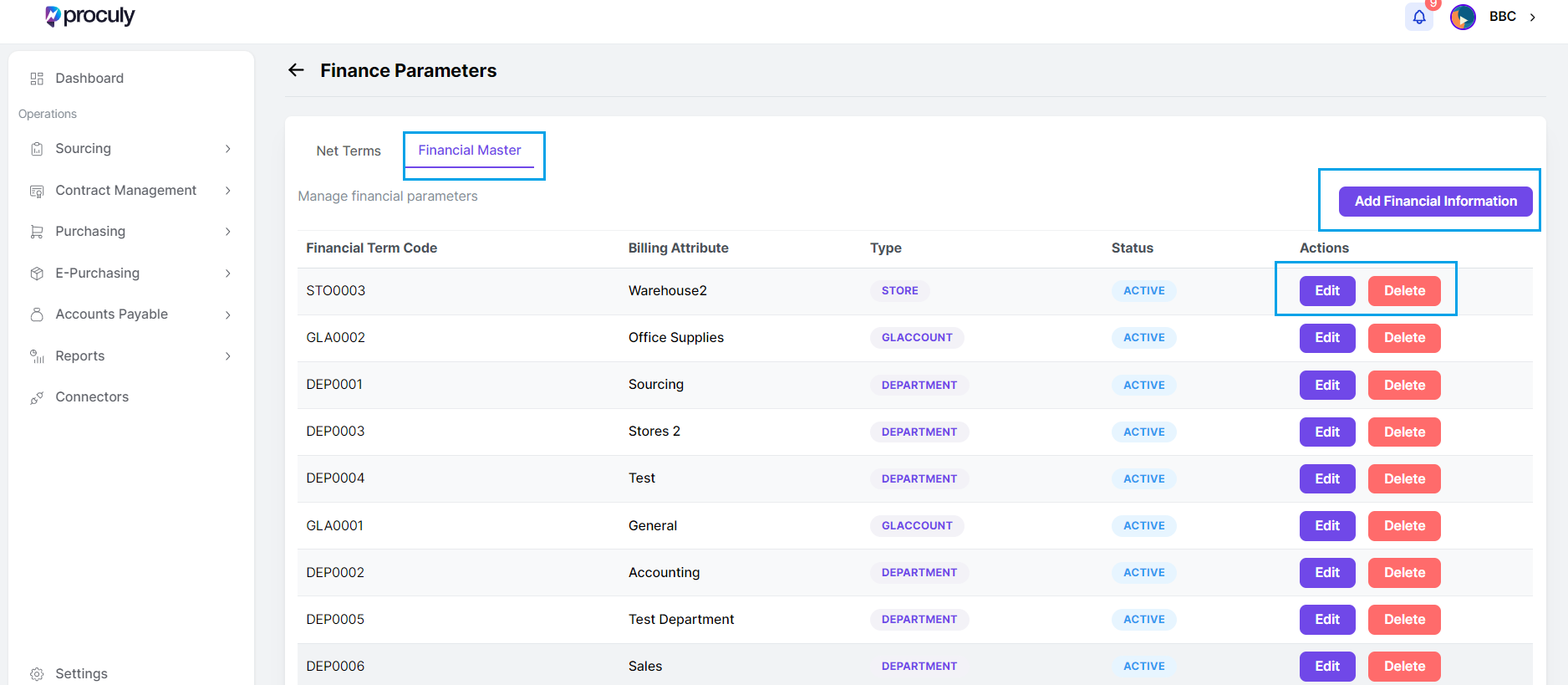
Settings > Parameters > Finance Parameters > Financial Master.
On this page, all defined departments, locations, GL accounts, stores, projects, and subsidiaries are listed.
Adding New Financial Master Data: Click on the “Add Financial Information” button to open a pop-up window. Fill in the required fields and click on the “Save Information” button to add the new master data to the list.
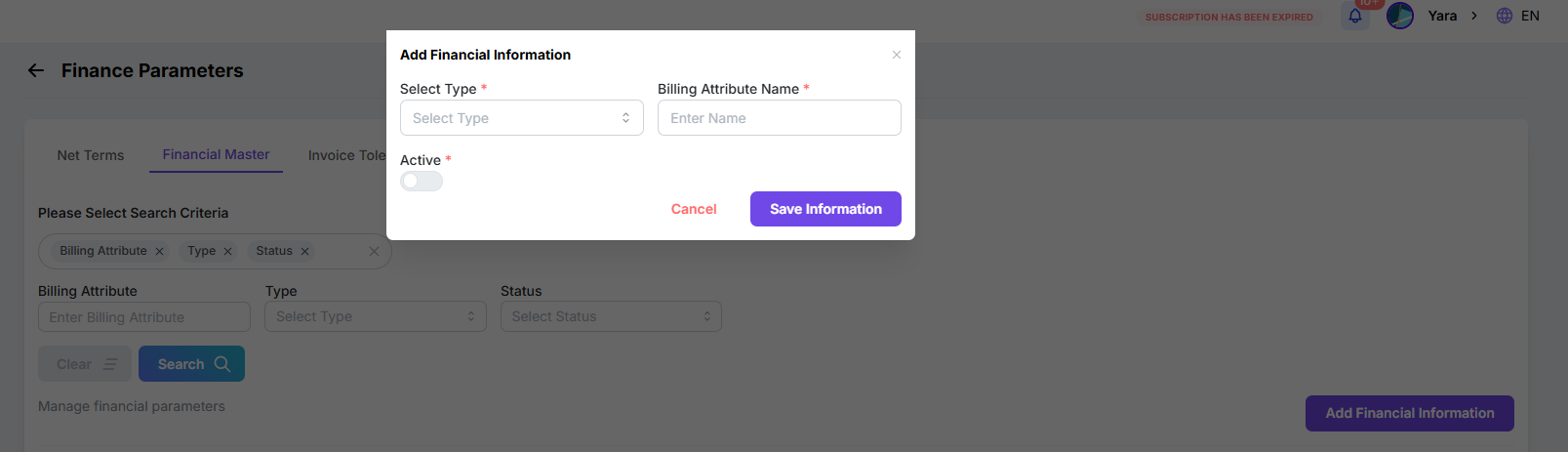
- Departments: Linked to users and all procurement documents.
- Locations: Currently linked to users only.
- Projects: Linked to users, requisitions, and purchase orders.
- GL Accounts: Can be linked to item categories and vendors if needed.
- Stores: Linked to Received Notes.
- Active/Inactive Toggle: Determines the status of the master information. Only active financial master information will appear in the related dropdown options in procurement documents.
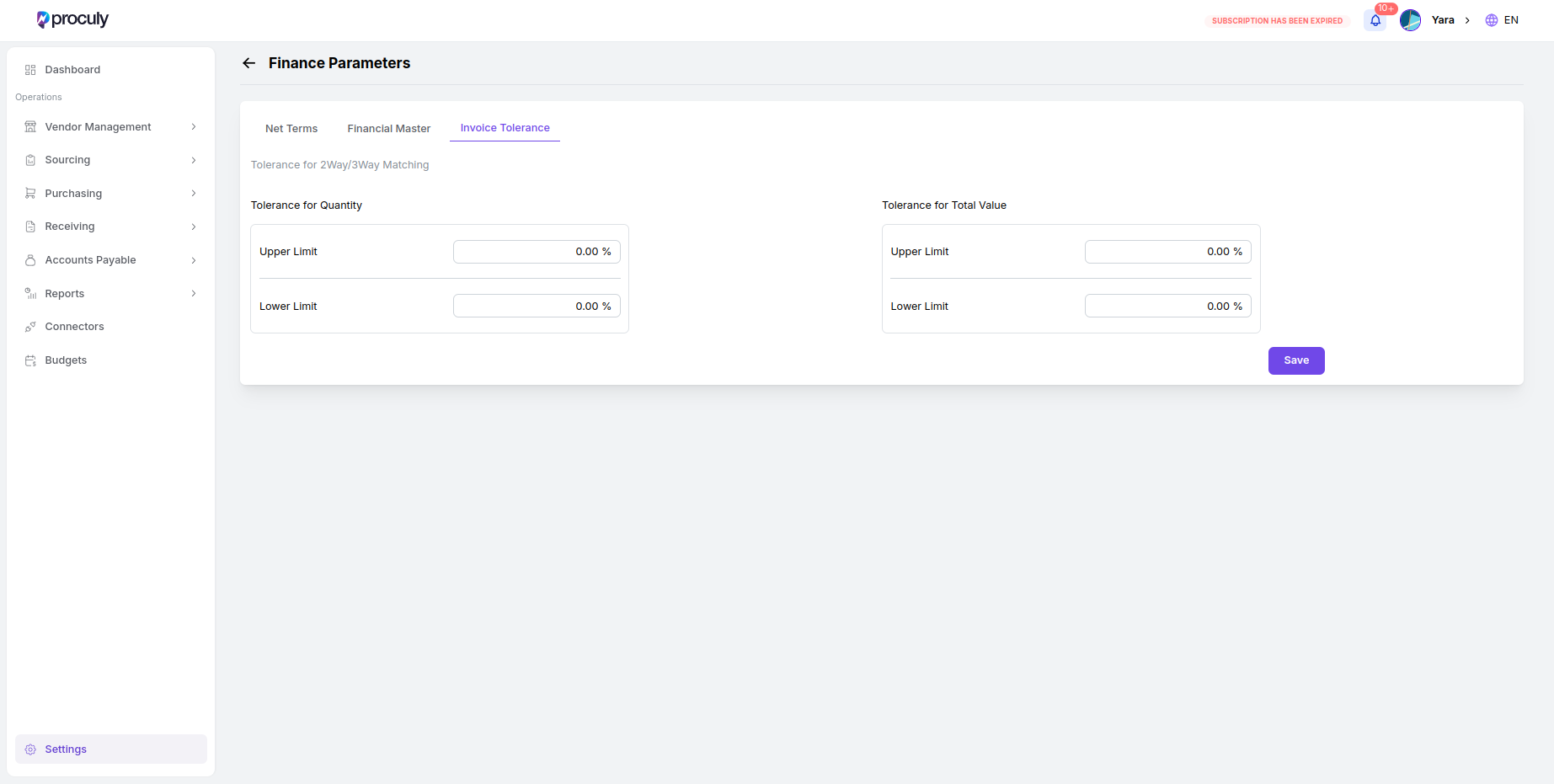
Settings > Parameters > Finance Parameters > Invoice Tolerance
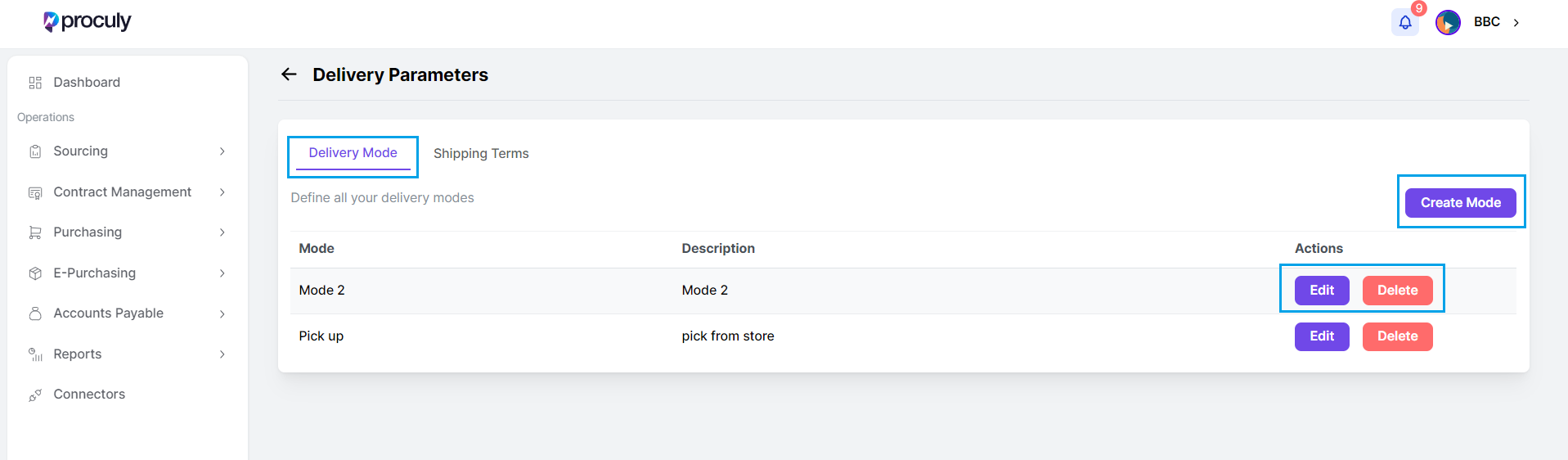
Settings > Parameters > Delivery Parameters > Delivery Modes.
On this page, all defined delivery modes are displayed in a list.
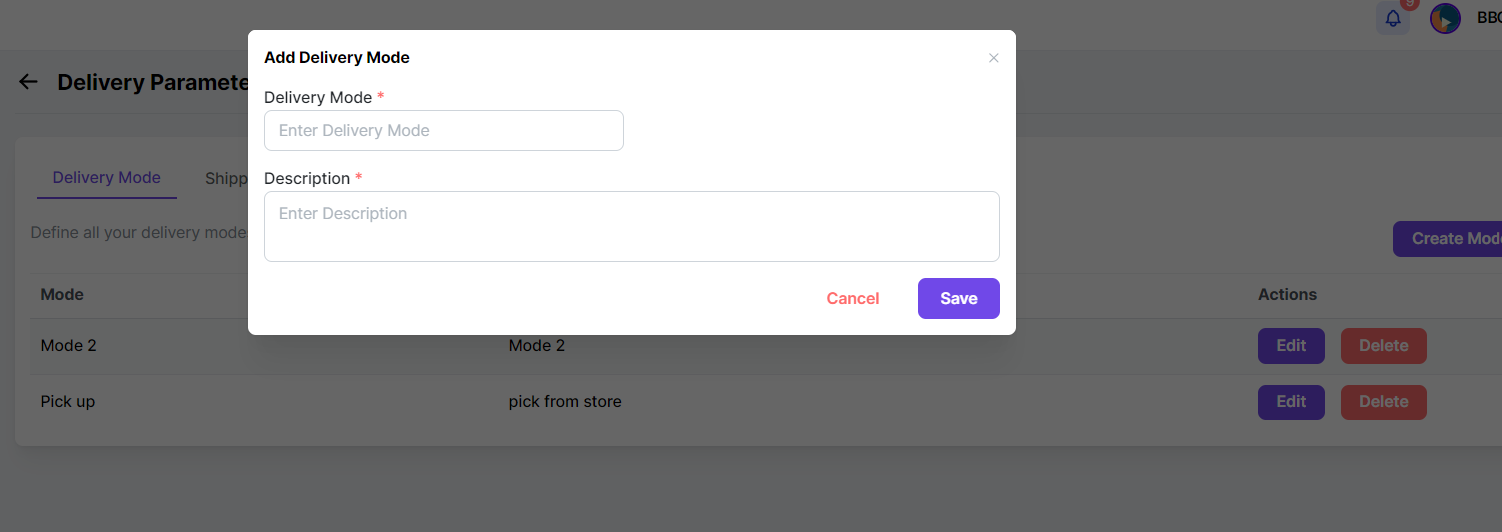
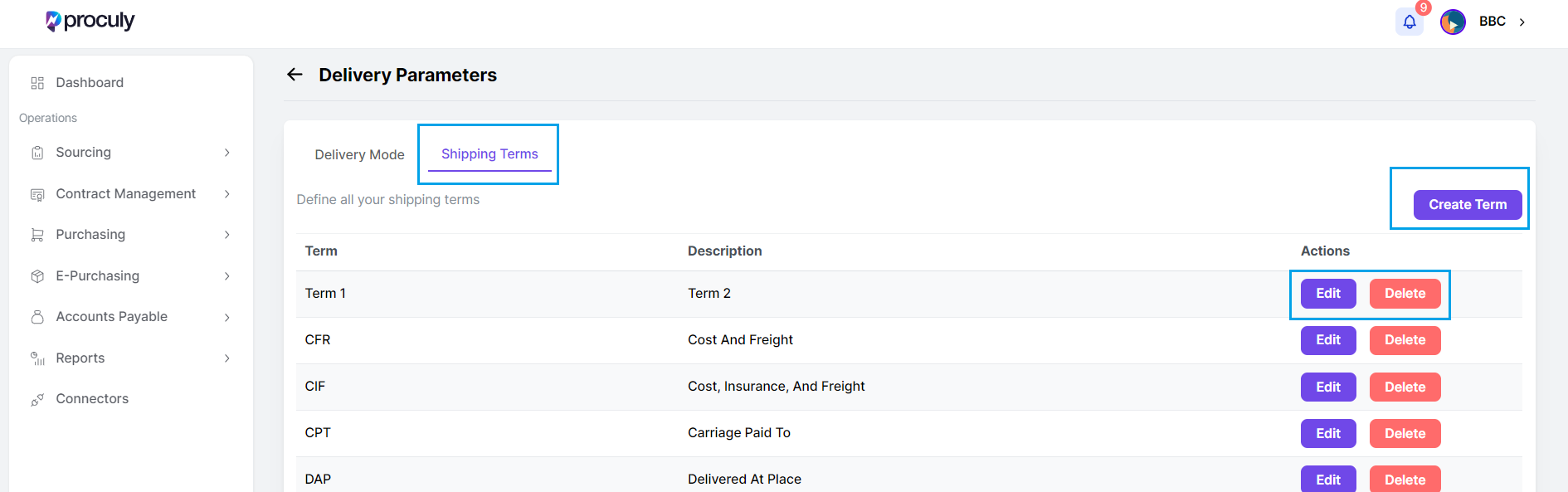
Settings > Parameters > Delivery Parameters > Shipping Terms.
On this page, all defined shipping terms are listed, including a general list of pre-defined shipping terms.

- Adding a New Shipping Term: Click on the “Create Term” button to open a pop-up window. Enter a name and description for the new shipping term and click on the “Save” button to add it to the list.
- Editing and Deleting Shipping Terms: Use the “Edit” and “Delete” buttons in the actions column to modify or remove shipping terms as needed.
How to set your Approval Workflow Automation
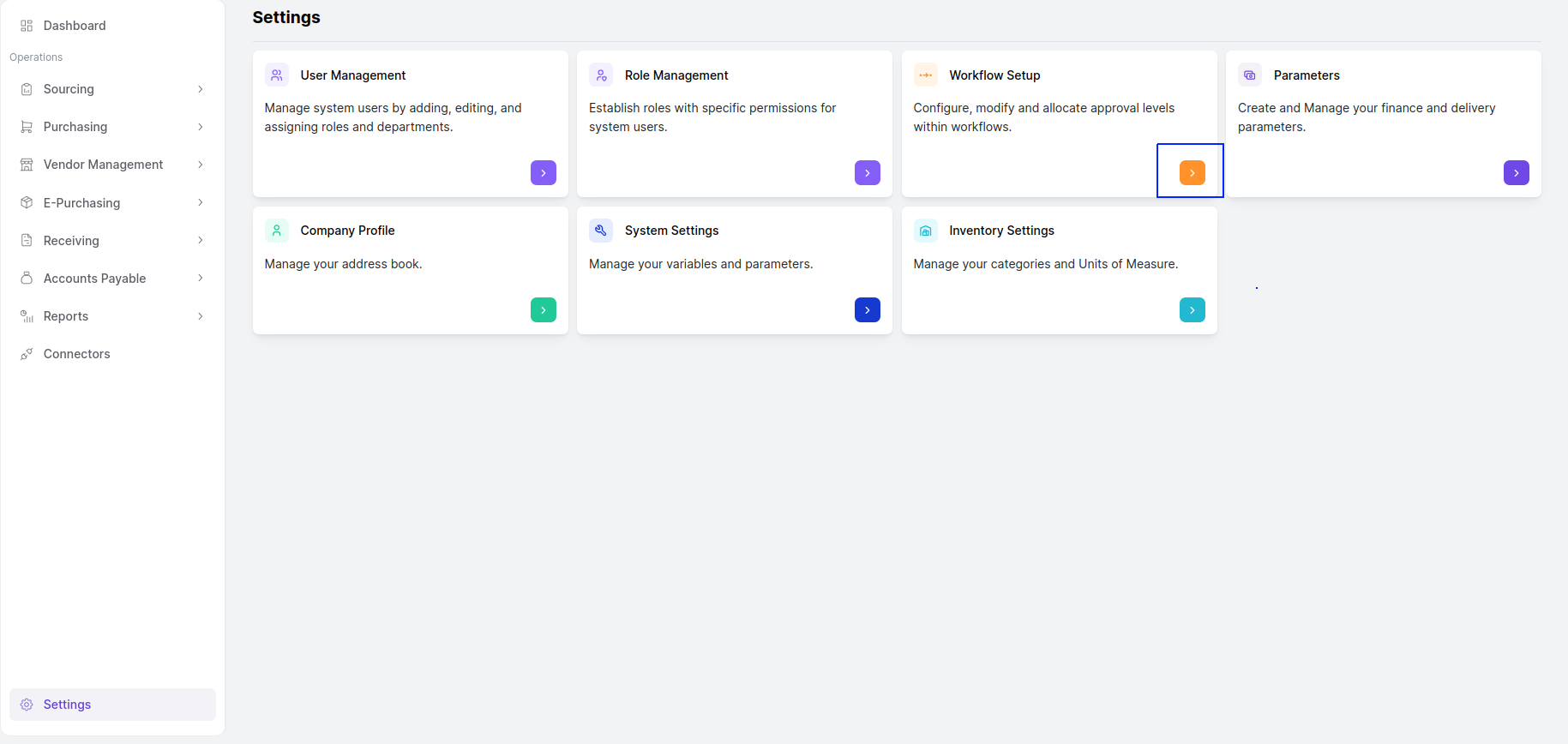
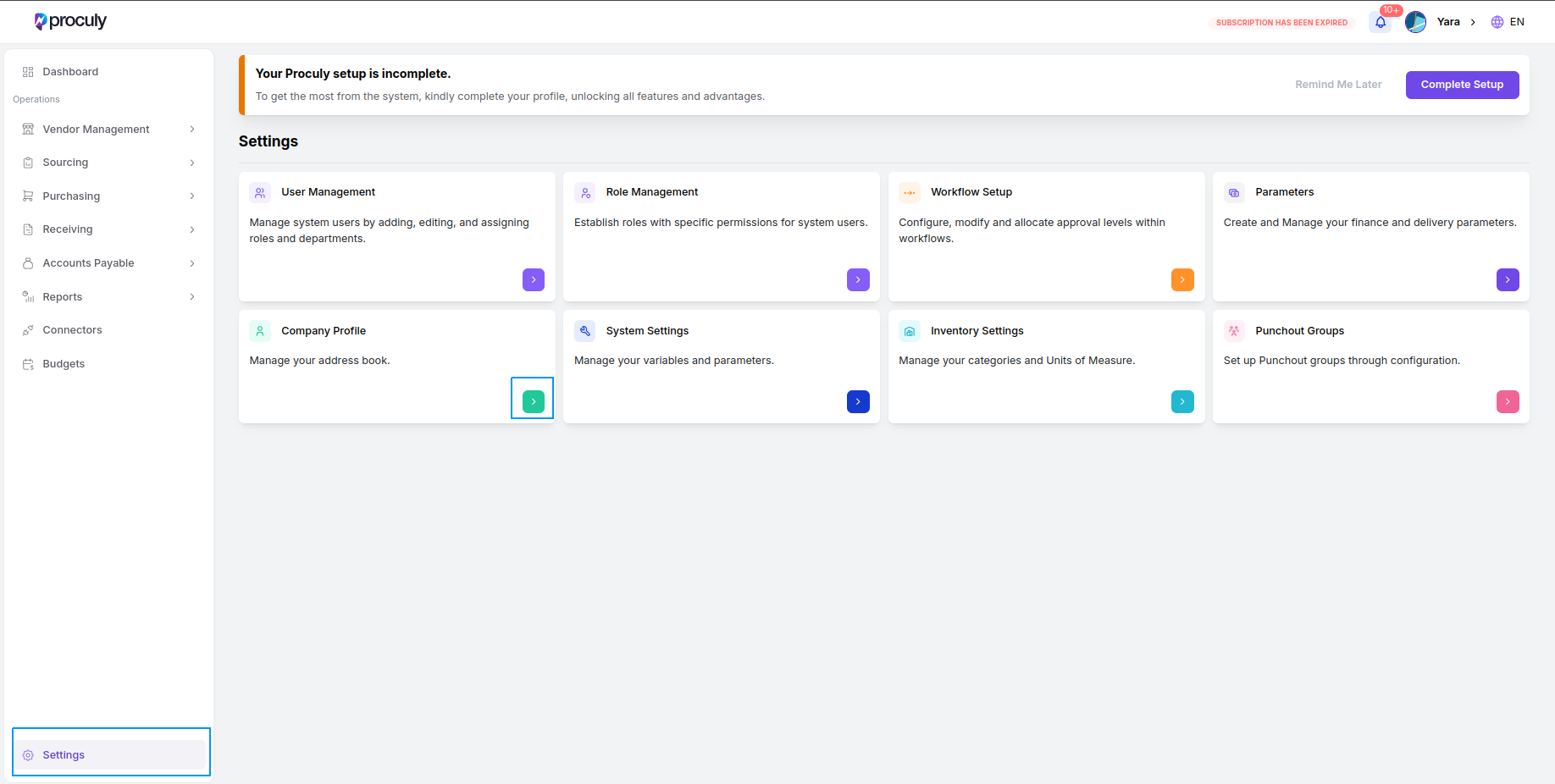
Workflow Setup Overview Through workflow setup, users can configure, modify, and allocate approval levels within workflows to ensure efficient and structured approval processes. Accessing Workflow Setup To access the Workflow Setup page, navigate through the main menu:Settings > Workflow Setup.
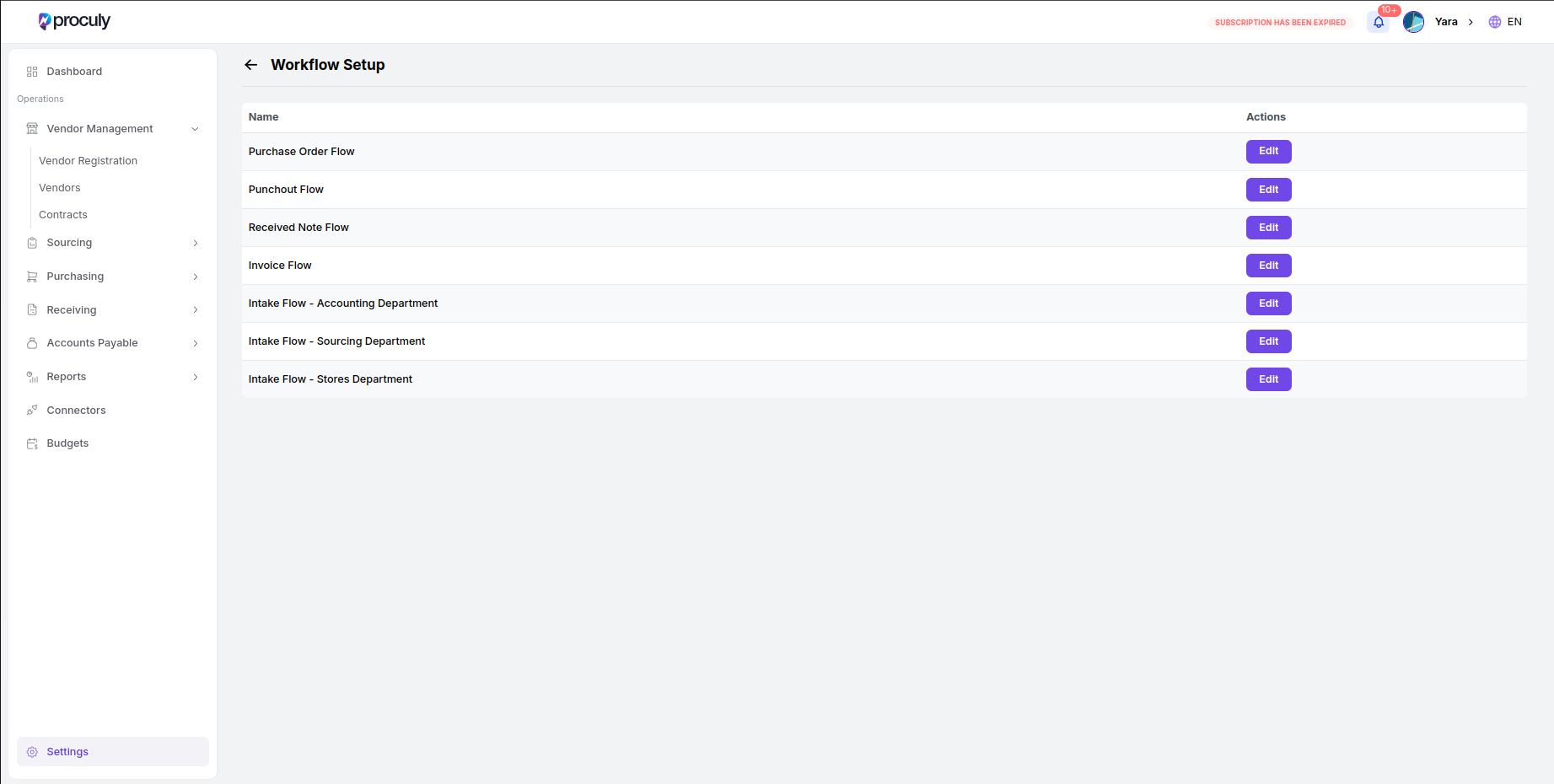
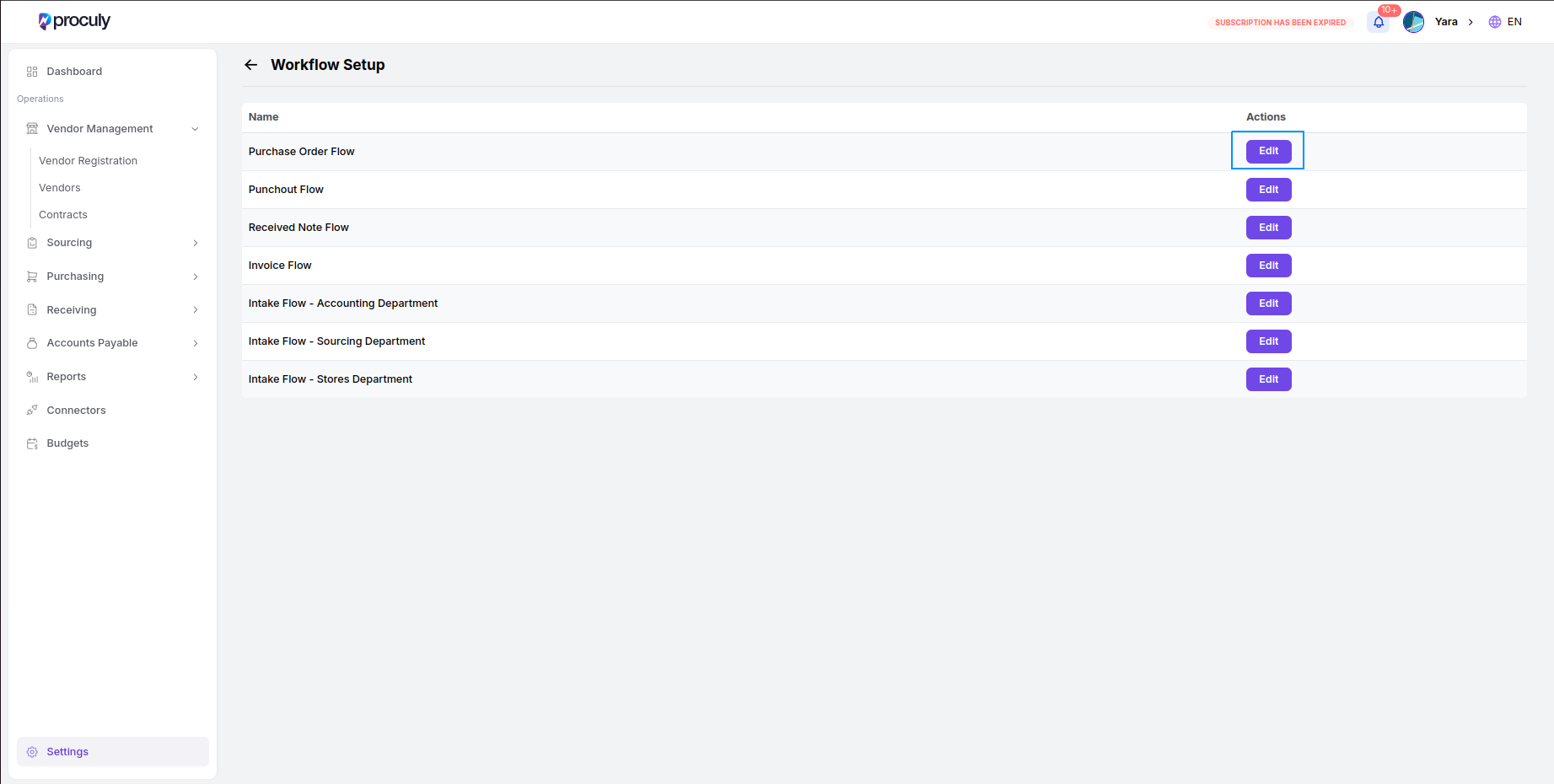

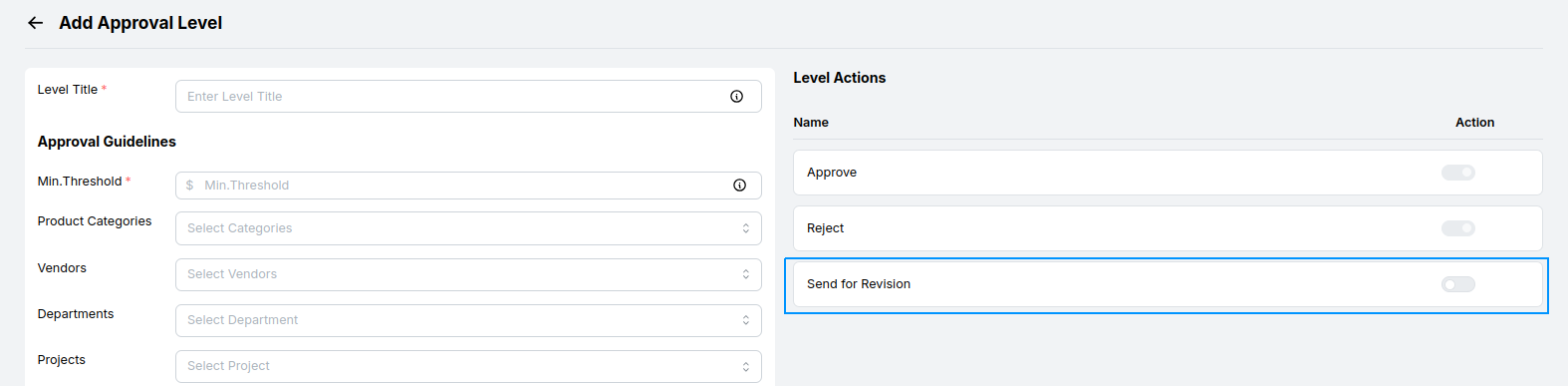
- Level Title: Give a name and type for the approval level. The title is a descriptive title for the approval level to be displayed in the approval levels table to help you identify the role or stage of approval within the workflow.
- Minimum Threshold: Define the minimum value of a document to apply this approval level. Documents exceeding this value will go through this approval level, while those below it will bypass it.
- Specific Criteria: Select product categories, departments or projects, vendors, and GL accounts to specify which documents should undergo this approval level.
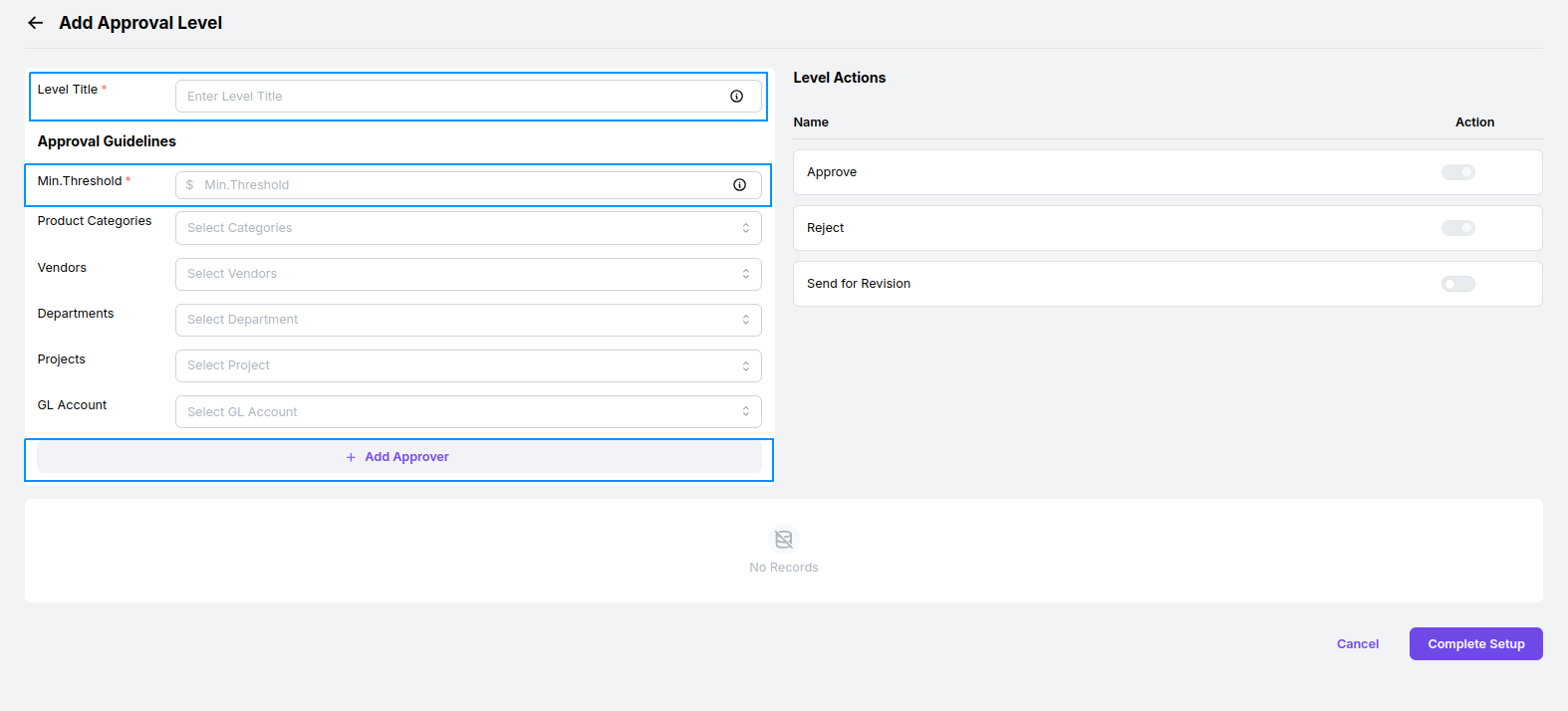
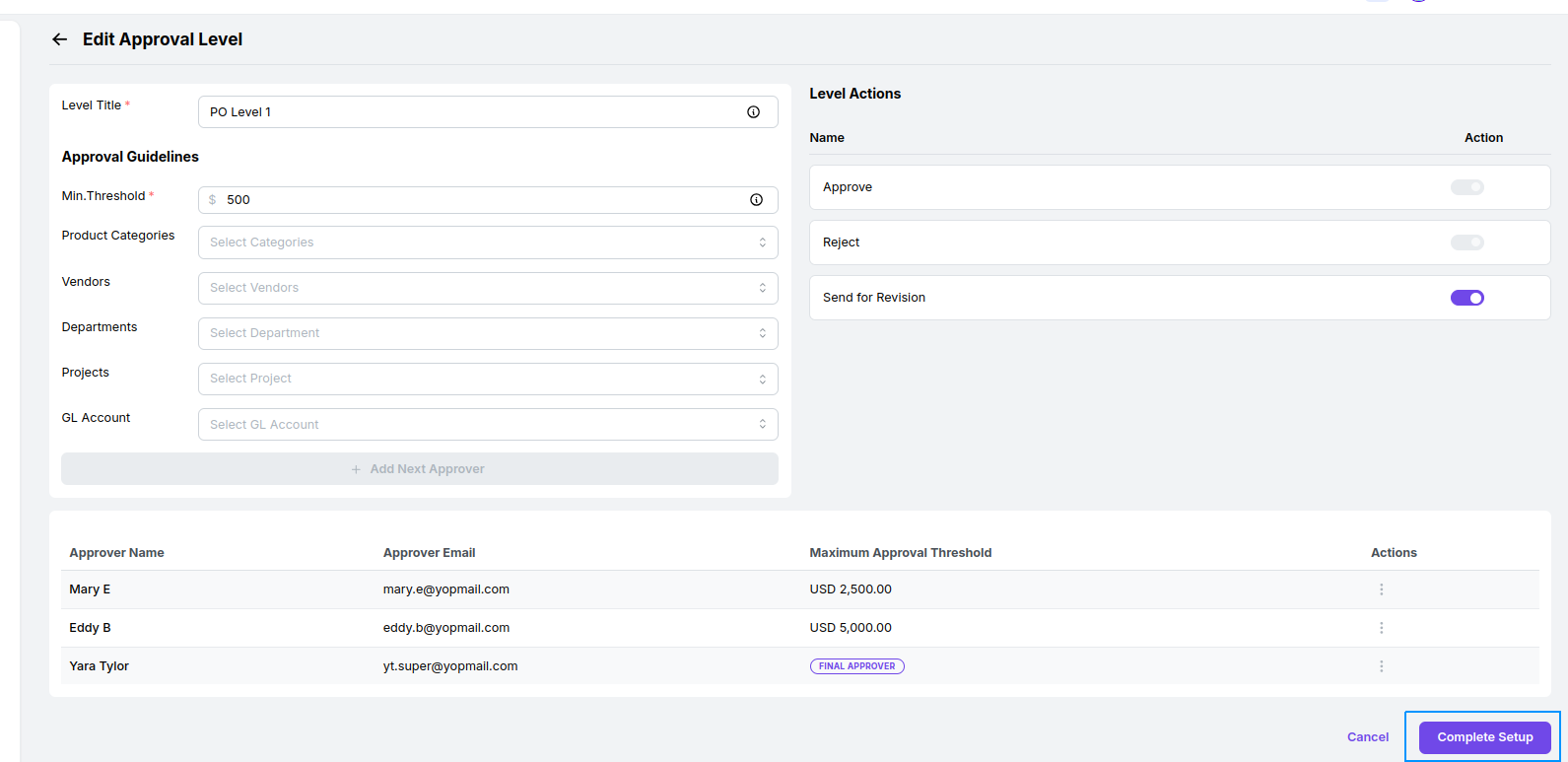
Add Approver
Add Approver
Add Approver: Add an approver with assigned maximum threshold value.
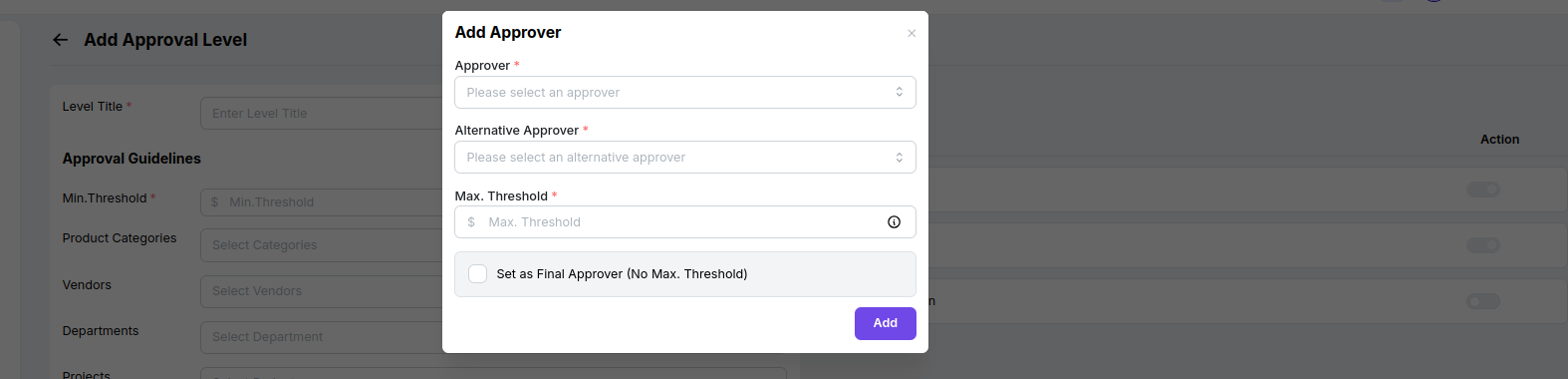
Add Next Approver
Add Next Approver
Add Next Approver: You can add multiple approvers for an approval level with assigned maximum threshold
values for them. Approvers will be assigned based on their threshold values when a document is submitted for
that approval level.
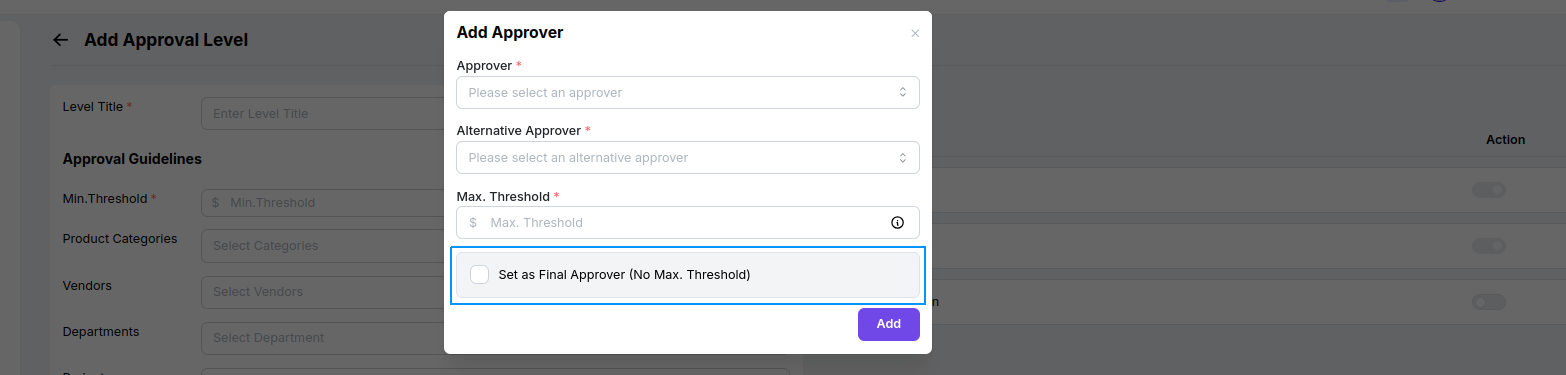
Final Approver
Final Approver
Final Approver: One of the approvers need to be set as the final approver who will be authorised to approve
the corresponding procurement documents with no maximum threshold limit. You will not be able to save the
approval level without setting a final approver.
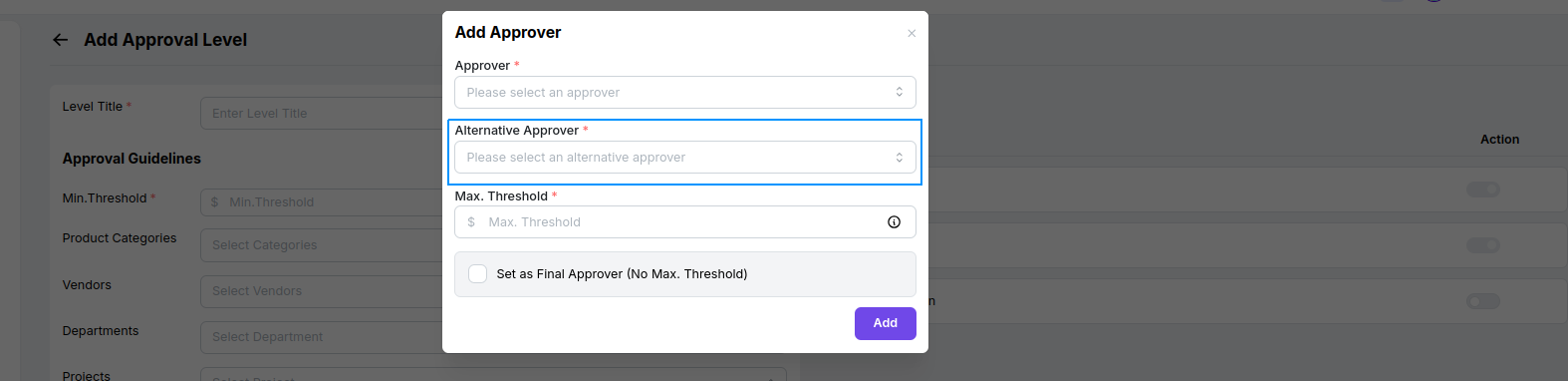
Alternative Approver
Alternative Approver
Alternate Approver: When an approver marks themselves as “On Leave” in the system, any approval requests
assigned to them during their leave will be automatically redirected to their designated alternate approver.
Once the leave period ends, all pending approvals will be reassigned back to the original approver.
Level Actions
Level Actions
Level Actions: Besides Approve and Reject, activate the “Send for Revision” option. This allows the approver
to send the document back for edits before resubmission.
Completing Setup
Completing Setup
Completing Setup: After filling in all mandatory data, click on the “Complete Setup” button to add the
approval
level to the workflow.
Edit and Delete
Added approval levels appear in the Edit Flow view and can be modified or removed, provided there are no pending
approvals linked to them.
Recognize Levels
Reorganize the order of approval levels by dragging and dropping them. Documents will be assigned for applicable
approval levels according to this order.
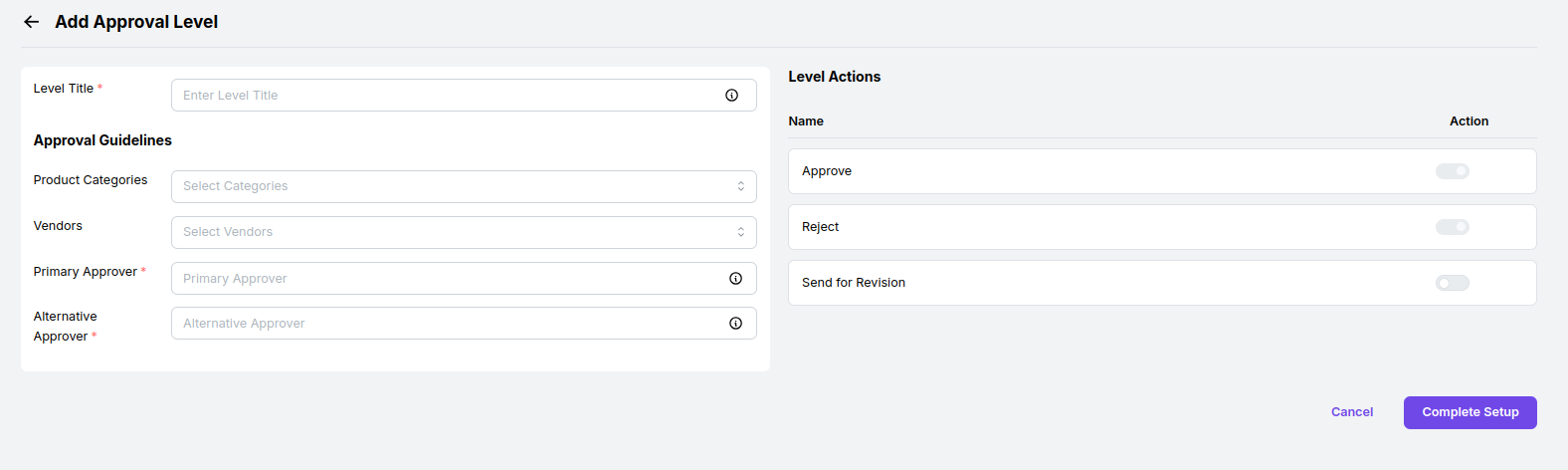
- The approval level creation page does not include a “Minimum Threshold” field or a list of multiple approvers.
- Assign a primary approver for all submitted documents for that approval level.
- Multiple approval levels can still be set up within the flow.
- By setting up and managing workflows in Proculy, you ensure that approval processes are tailored to your organization’s needs, providing a clear and efficient path for document approvals.
- Added approval levels can be reorganized to create the exact workflow order.
Setting up Your Company Profile
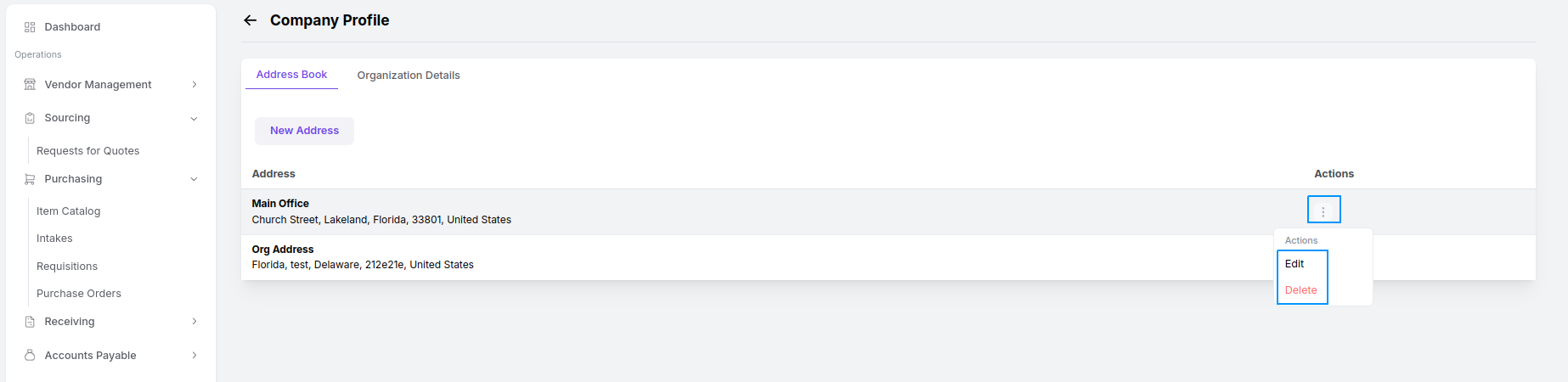
Go to Settings > Company Profile. The first tab is your company’s address book. The address book contains the set of addresses that you can use as your shipping addresses in purchasing.
New Address
New Address
Click on New
Address, fill the information, and click Save to add new addresses to the address book.

Actions
Actions
You can edit or delete an added address by clicking on the actions option.
Organization Details
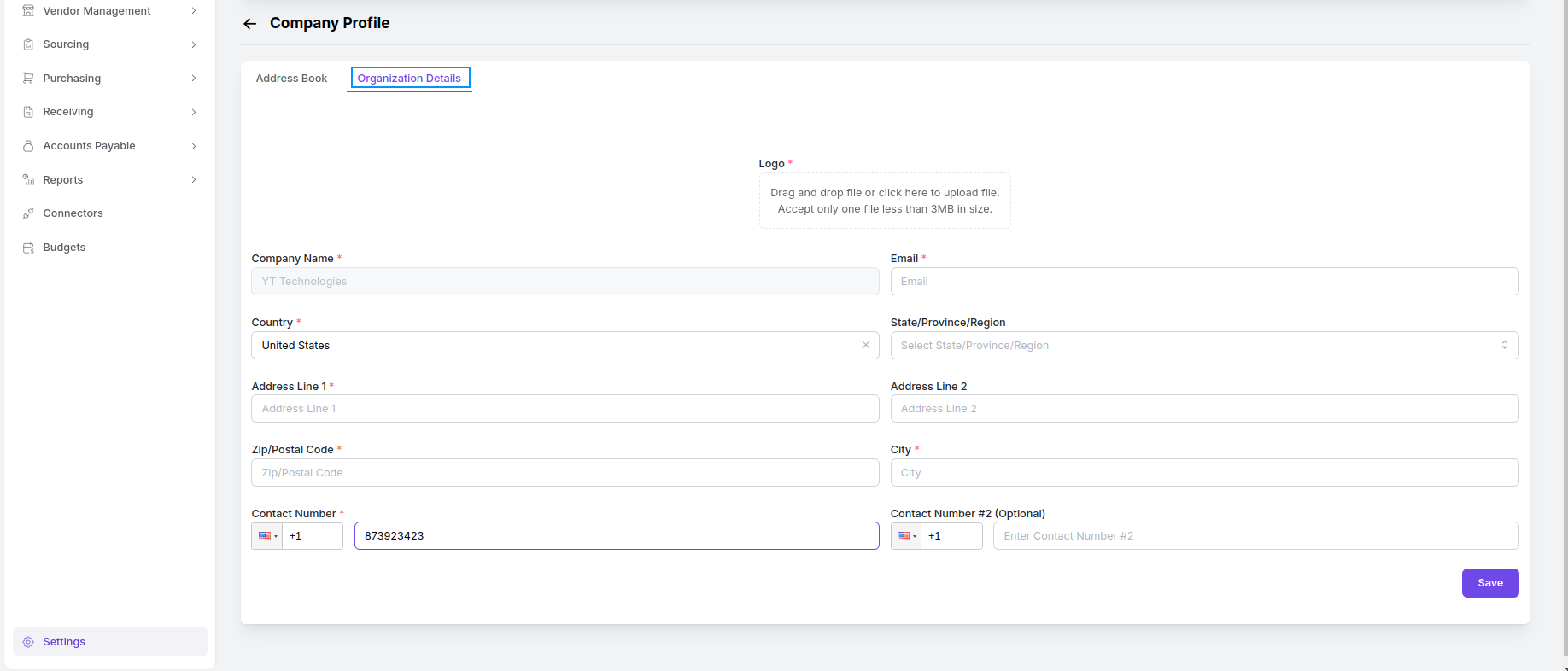
Organization Details
In the Organization
Details tab on this page, you can add the contact details of your company and upload your company logo.
Enter
information and click save.
Manage your Currency Information
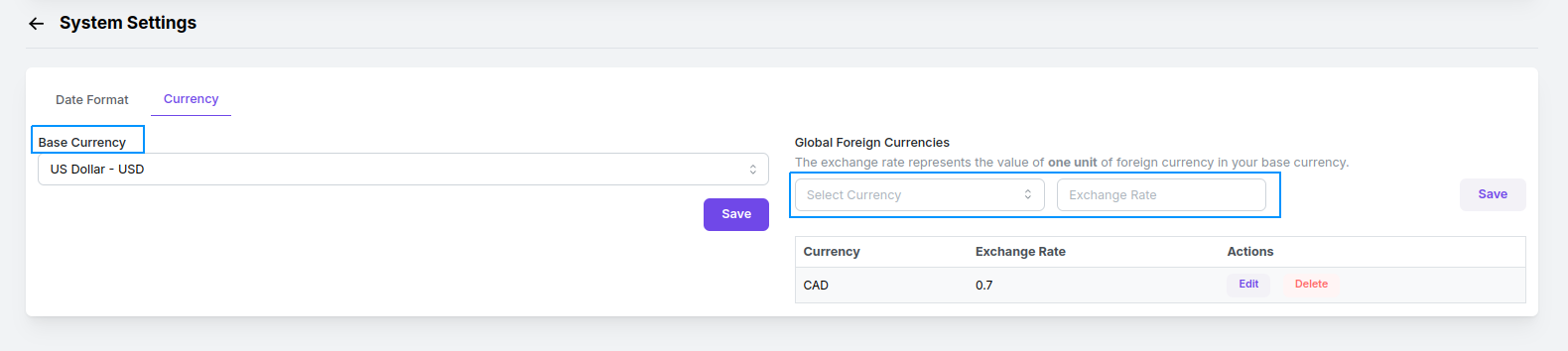
You can have a list of foreign currencies to use in purchasing in the Settings page. Go to System Settings and select Currency. First you should select and save your base currency. Then you can select foreign currencies and save them with exchange rates.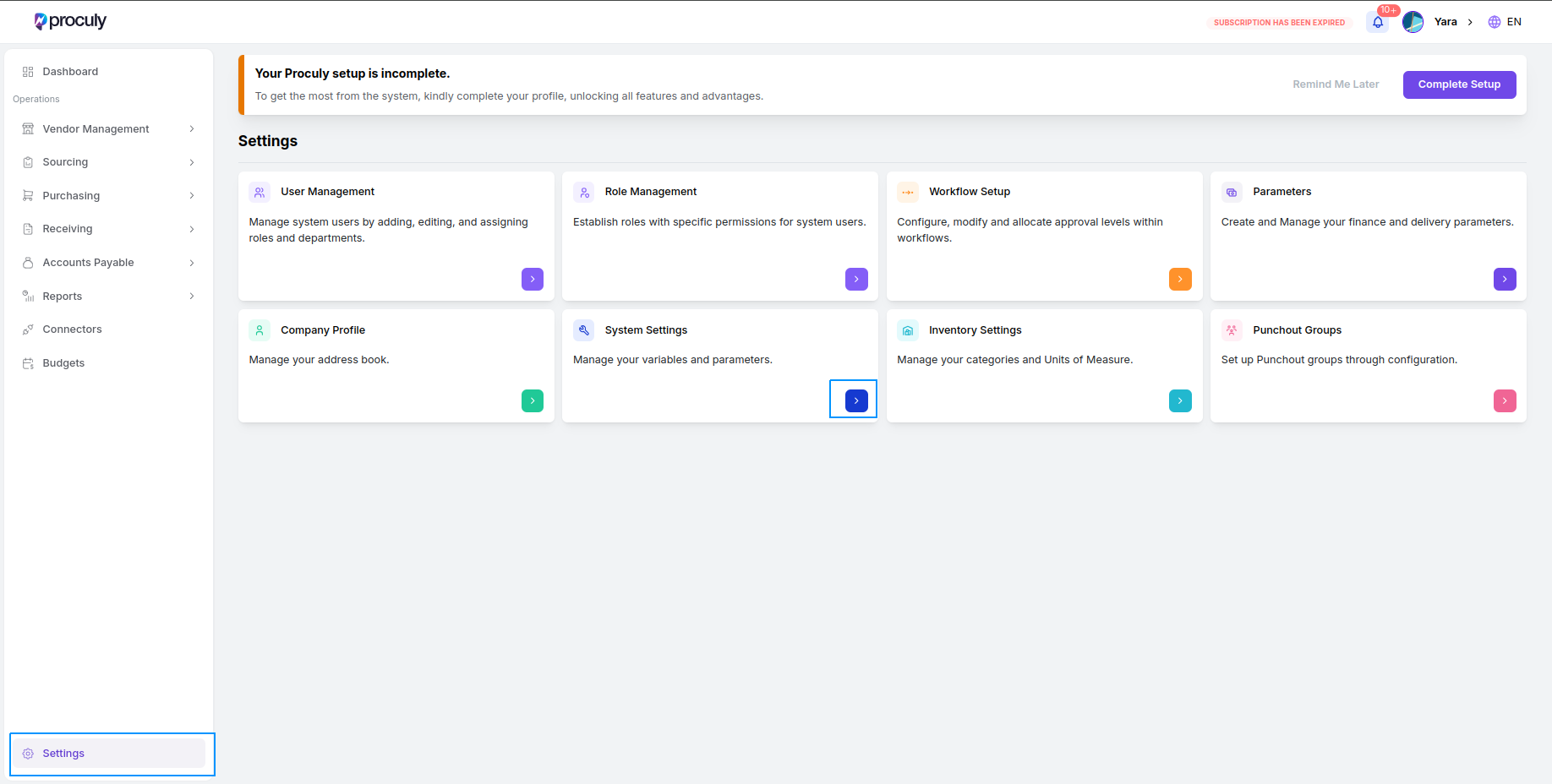
Edit Currency
Edit Currency
Click the Edit button for a foreign currency to update its exchange rate and save the changes.