> ## Documentation Index
> Fetch the complete documentation index at: https://help.proculy.com/llms.txt
> Use this file to discover all available pages before exploring further.
# Understanding the Basics
> Understand the foundation of the Proculy procurement platform and start your journey
### What is Proculy
**Proculy is a Highly Customizable and Affordable Procure-To-Pay (P2P) SaaS or Cloud Platform**
Welcome to the Proculy Procurement Software Help Documentation. This guide provides you with detailed information on how to effectively utilize Proculy Whether you are new to Proculy or looking for a deeper understanding of its features, this document is designed to help you get the most out of your procurement process.
**Start Your Procurement Journey with Proculy**
First and foremost, congratulations on choosing Proculy as your trusted partner for procurement. Proculy is an intuitive, comprehensive software that simplifies your procurement process. This highly customizable and cost-effective solution is designed to enhance your efficiency and streamline your operations while introducing cost savings and enhanced visibility to your organization.
**A Closer Look at Proculy**
Proculy is your end-to-end procurement platform.Offering robust security and data protection, it is built on the reliable AWS platform. Its foundation is a well-structured microservice architecture comprising decoupled components.
**What Proculy Empowers You to Do**
Incorporating Proculy into your operations allows you to manage intakes, requisitions, requests for quotes, purchase orders, invoices, vendors, contracts, and budgets all within a single, user-friendly platform. This integration brings transparency and predictability to your spending workflows.
**Key Benefits of Proculy:**
Proculy adapts to your unique needs, offering a tailored solution for your procurement challenges.
Proculy effortlessly fits into your existing systems without the need for major upgrades.
With Proculy's foundation on the AWS platform, your data remains secure and well-protected.
Proculy is structured with a microservice architecture, ensuring scalability and flexibility.
**A Fresh Start with Proculy**
By incorporating Proculy into your procurement strategy, you're taking a significant step toward reducing overspending, controlling overspending, and managing fragmented vendors. The journey begins here.
With Proculy, you can elevate and begin your procurement journey with confidence. Say goodbye to time-consuming and error-prone processes, unclear workflows, and the absence of insightful reports.
***
## Real-time data dashboard
**Customized Appearance Based on User Role and Permissions**
The look and feel of the application's homepage are tailored to your specific role and assigned permissions. This help documentation primarily references the interface of a super administrator, the user responsible for creating and configuring the account and having full permissions. Depending on your user permissions, certain functionalities may not be accessible or configurable in your interface.
Upon logging into your account, you will encounter the following screen:
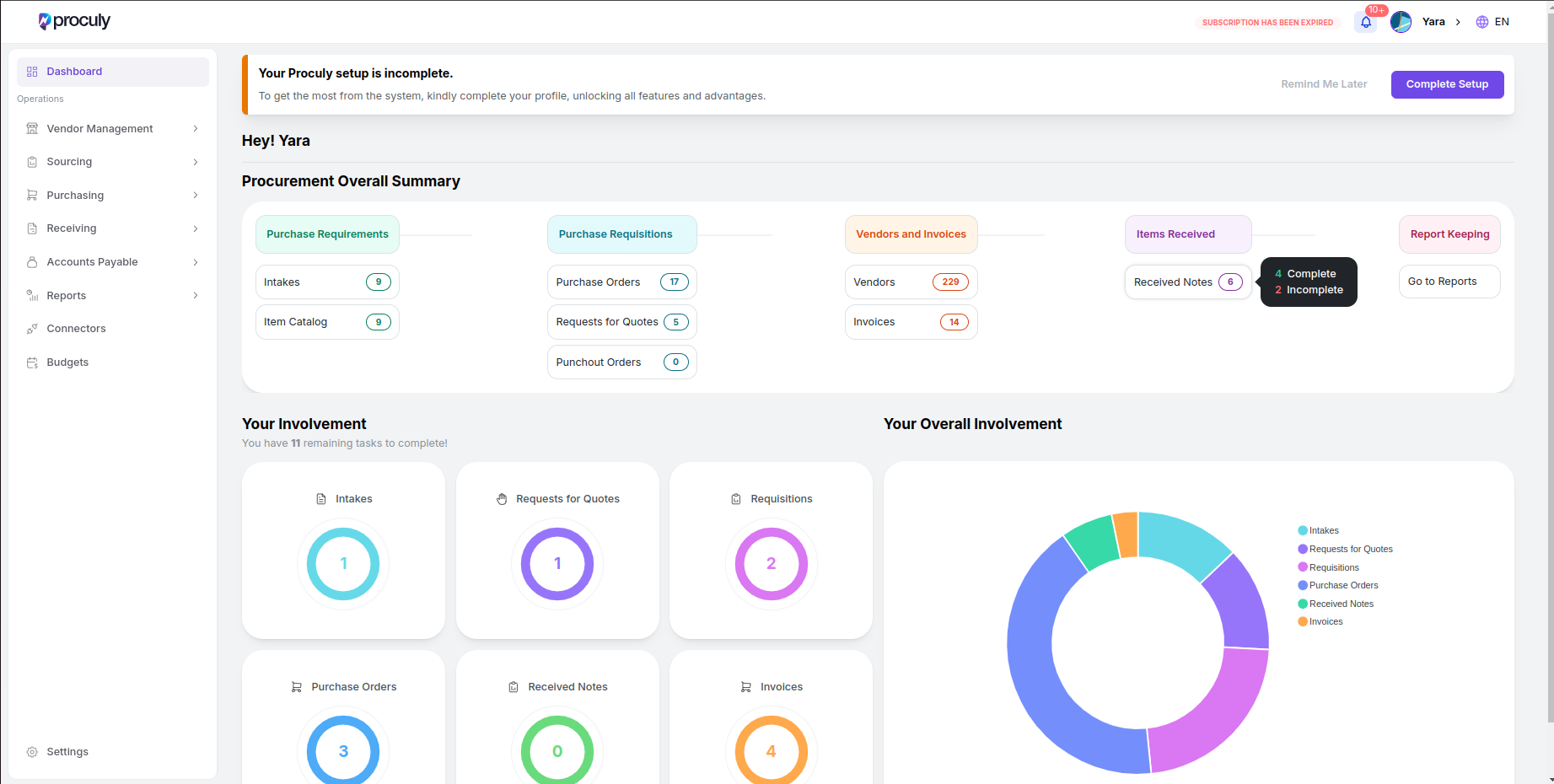 Your dashboard shows an overall summary of created procurement documents in the organization and the number of
pending items within each module for the logged-in user. You can navigate directly to your pending task lists from
the dashboard.
***
## Item Catalog
**Mastering Inventory:** Items and Services
In this section, you have the power to efficiently oversee your frequently purchased items. Create and manage your item catalog list with ease.
Access and utilize the item catalog via the purchasing module for seamless management.
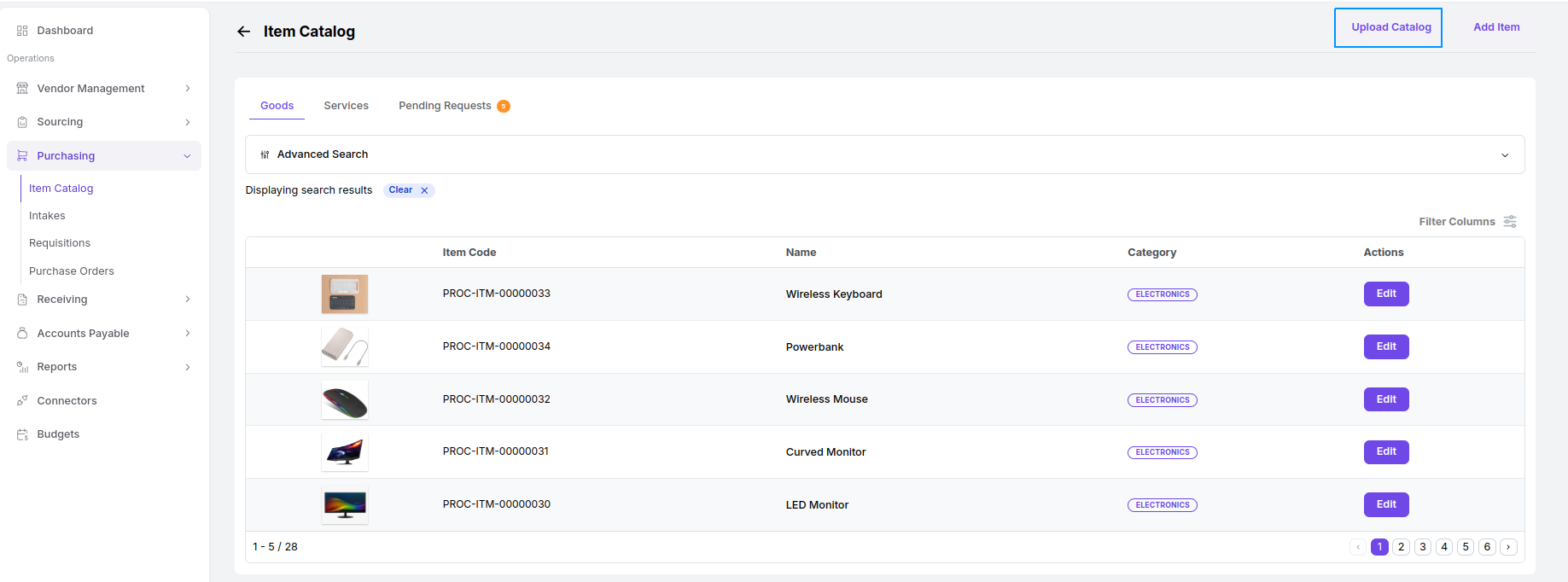
Clicking on the item catalog will take you to the item catalog page, where you can access the list of items already added to the system within the **‘Goods’** and **‘Services’** tabs.
Your dashboard shows an overall summary of created procurement documents in the organization and the number of
pending items within each module for the logged-in user. You can navigate directly to your pending task lists from
the dashboard.
***
## Item Catalog
**Mastering Inventory:** Items and Services
In this section, you have the power to efficiently oversee your frequently purchased items. Create and manage your item catalog list with ease.
Access and utilize the item catalog via the purchasing module for seamless management.
Clicking on the item catalog will take you to the item catalog page, where you can access the list of items already added to the system within the **‘Goods’** and **‘Services’** tabs.
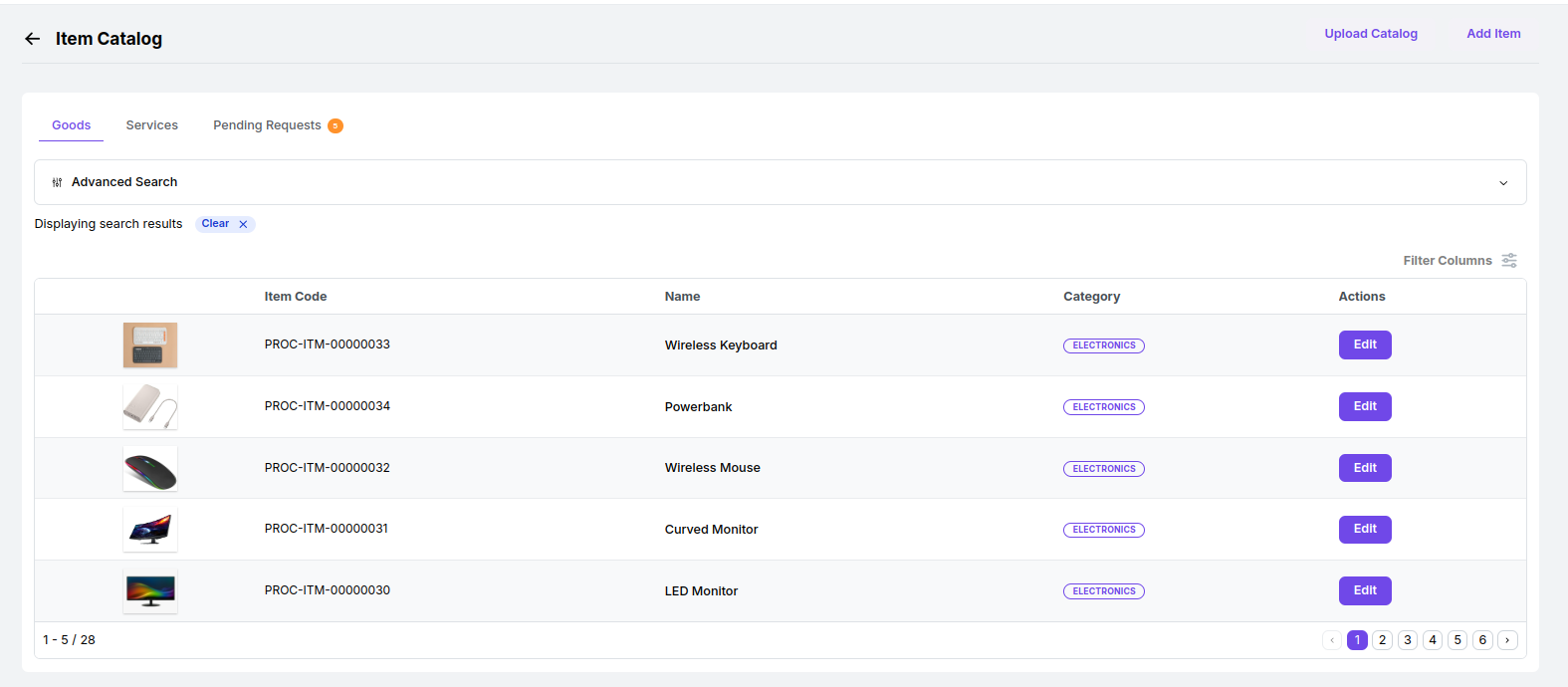 Click on the **edit** icon of the item to edit it.
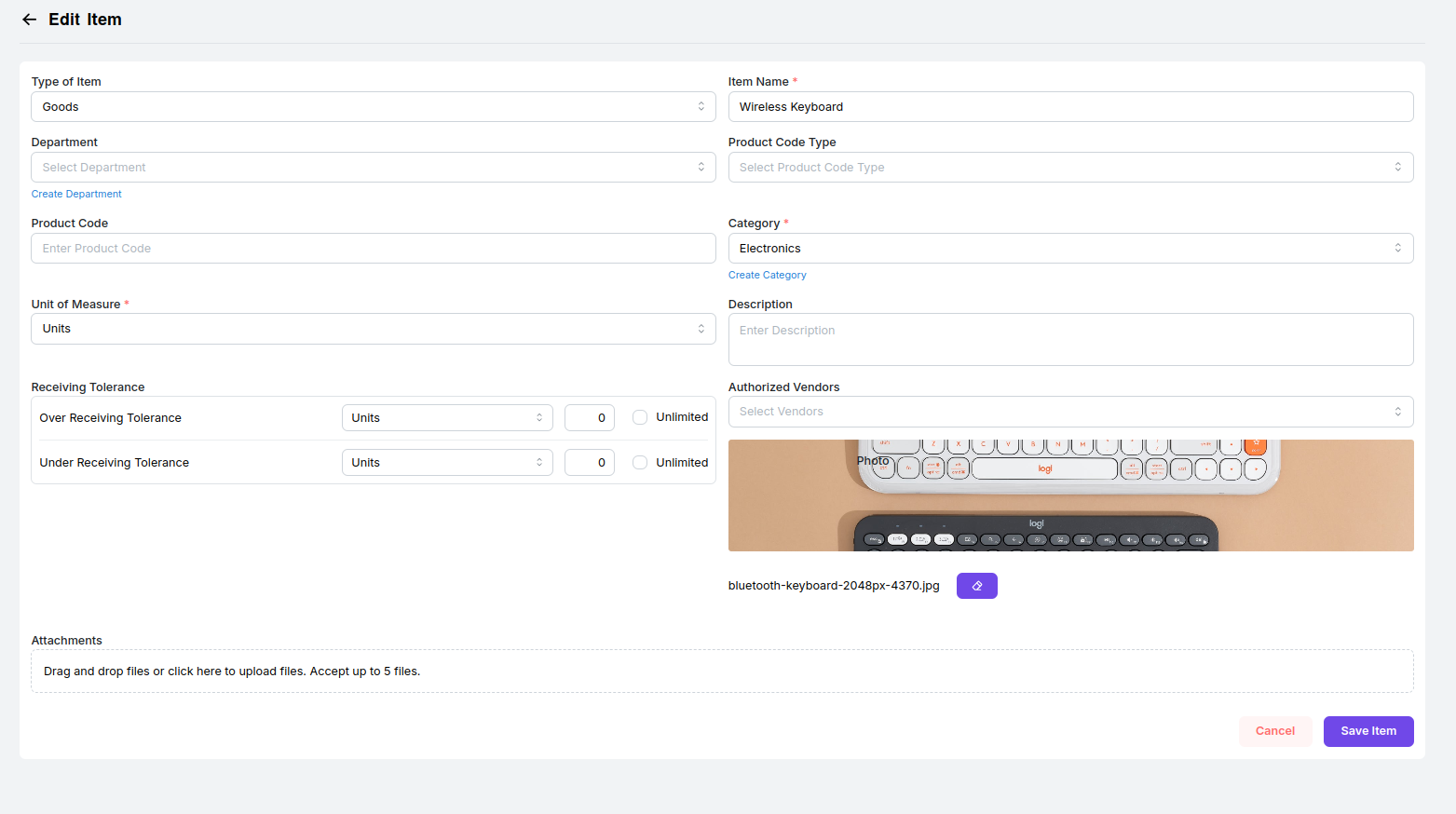 After you've made your modifications, simply **save** them.
To add a new item to the list, click on **"Add Item"** located in the right corner of the screen. Select the type of item as goods or services and fill in the required details, including item name, category, and unit of measure. Finally, click **"Save"** to preserve your new item.
After you've made your modifications, simply **save** them.
To add a new item to the list, click on **"Add Item"** located in the right corner of the screen. Select the type of item as goods or services and fill in the required details, including item name, category, and unit of measure. Finally, click **"Save"** to preserve your new item.
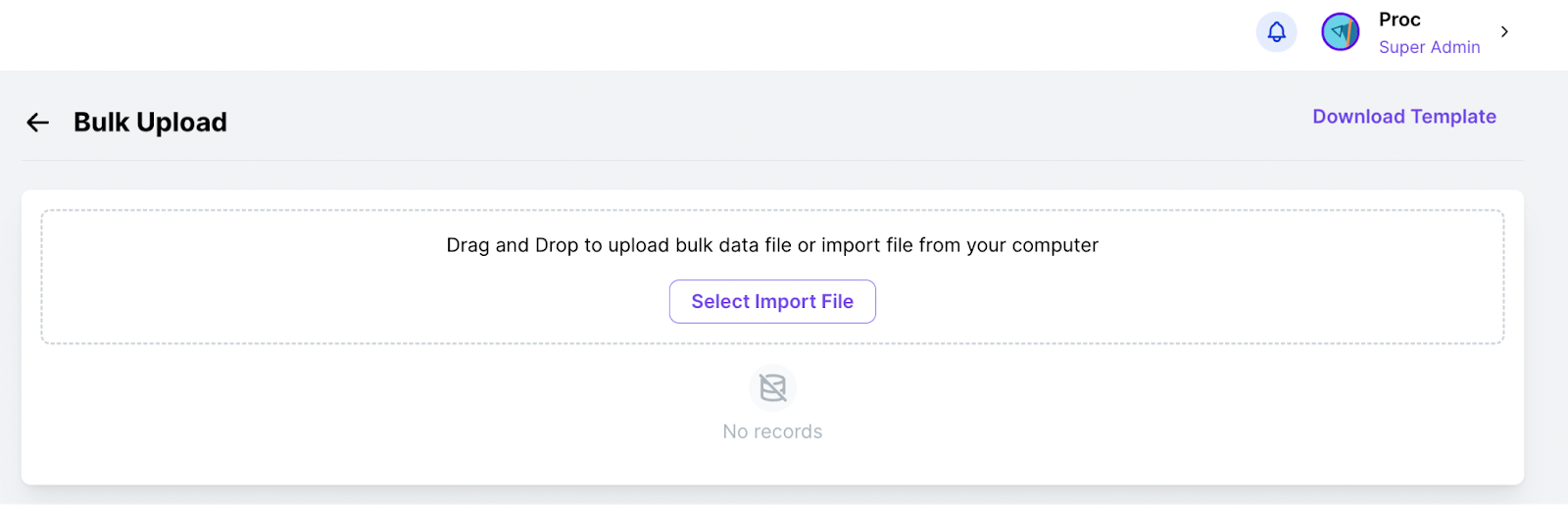
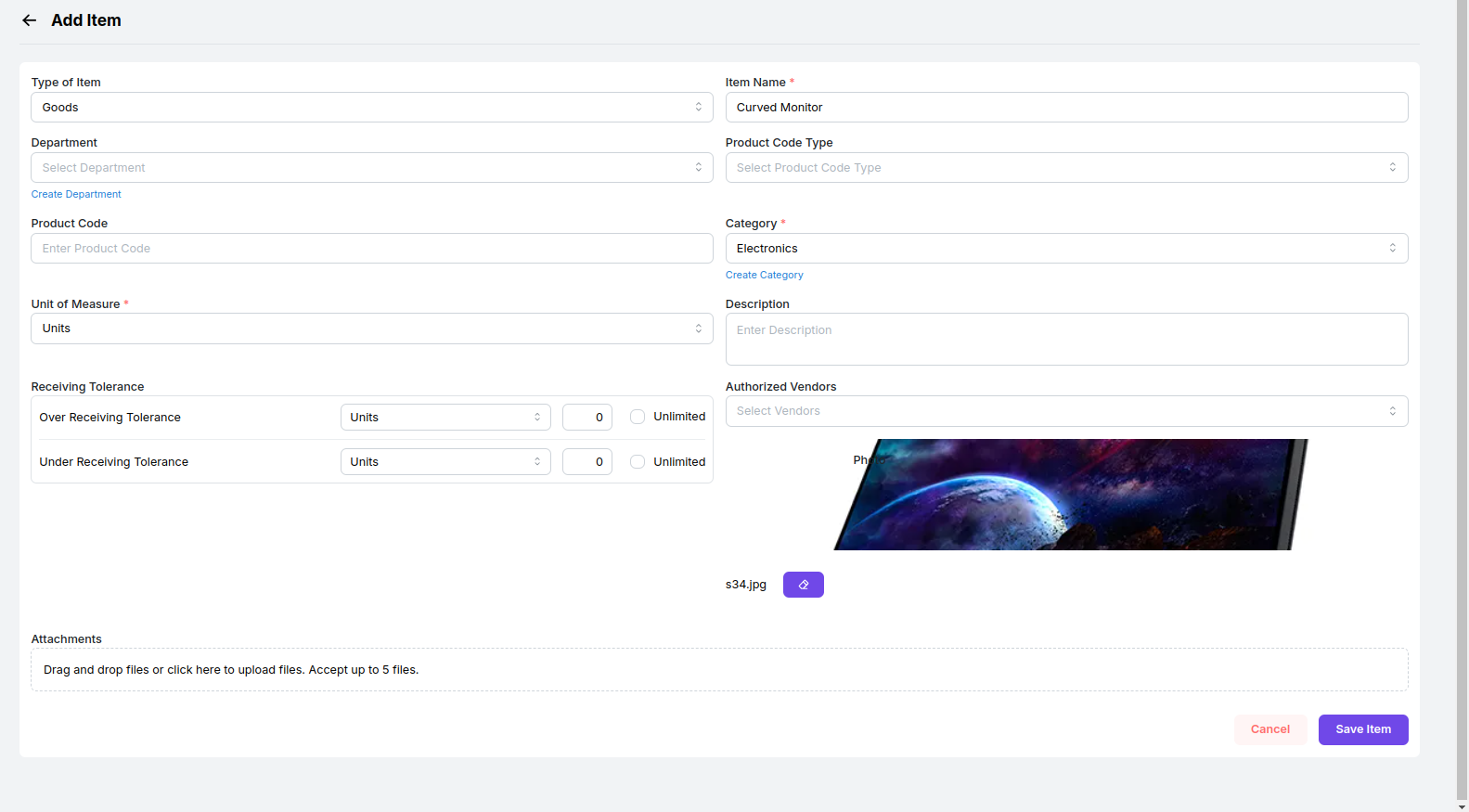 For efficient bulk imports to the dashboard, locate and click on the **"Upload Catalog"** icon, conveniently positioned on the right side of the screen. You can simply click on the Download Template button on the right upper corner of the Bulk Upload screen and get the CSV template to fill and upload.
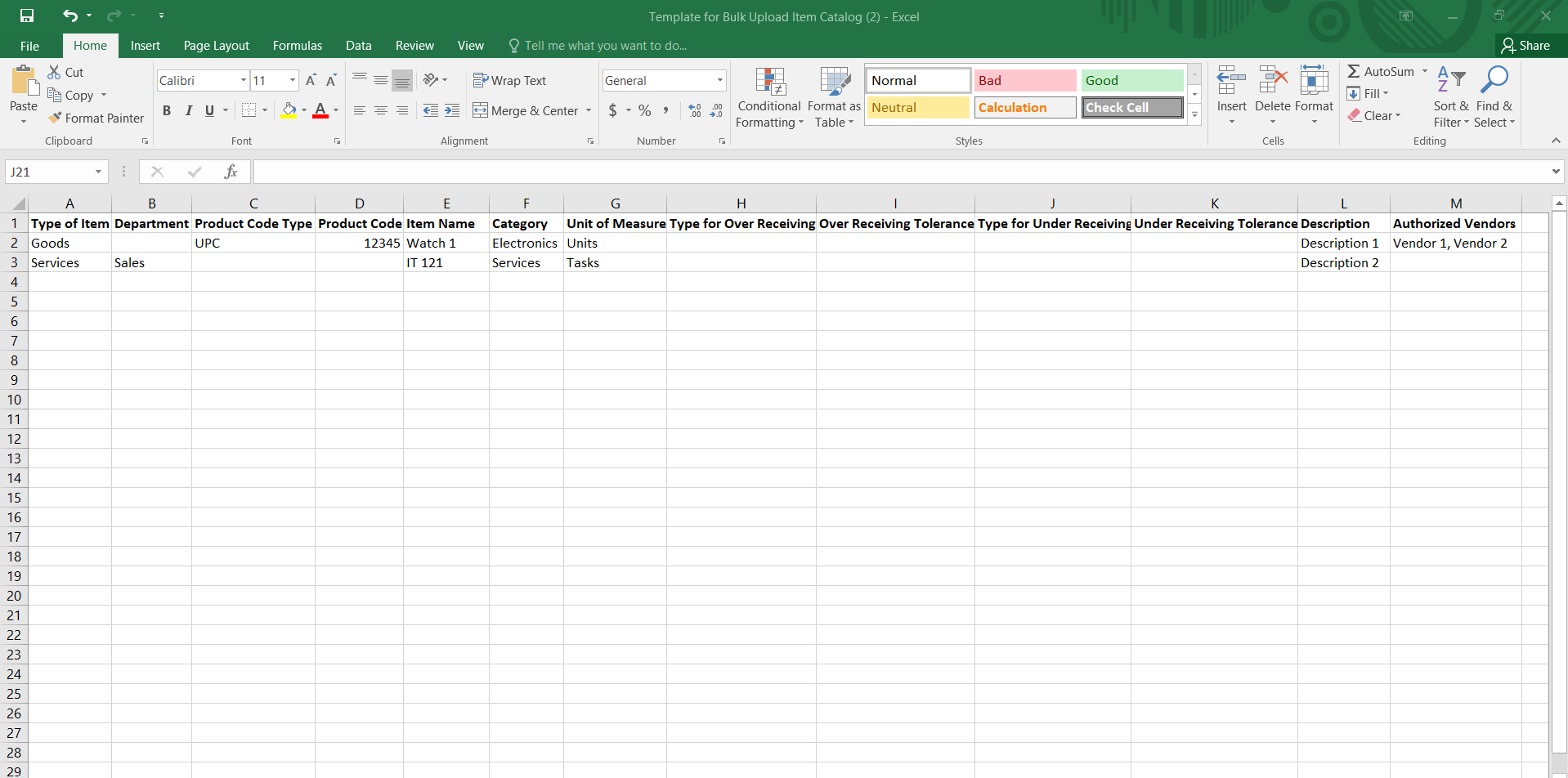 To successfully complete a bulk import via CSV file, ensure that the file contains the following headers in this specific order: Type of Item, Department, Product Code Type, Product Code, Item Name, Category , Unit of Measure, Type for Over Receiving tolerance, Over Receiving Tolerance, Type for Under Receiving tolerance, Under Receiving Tolerance, Description, Authorized Vendors, Photo.
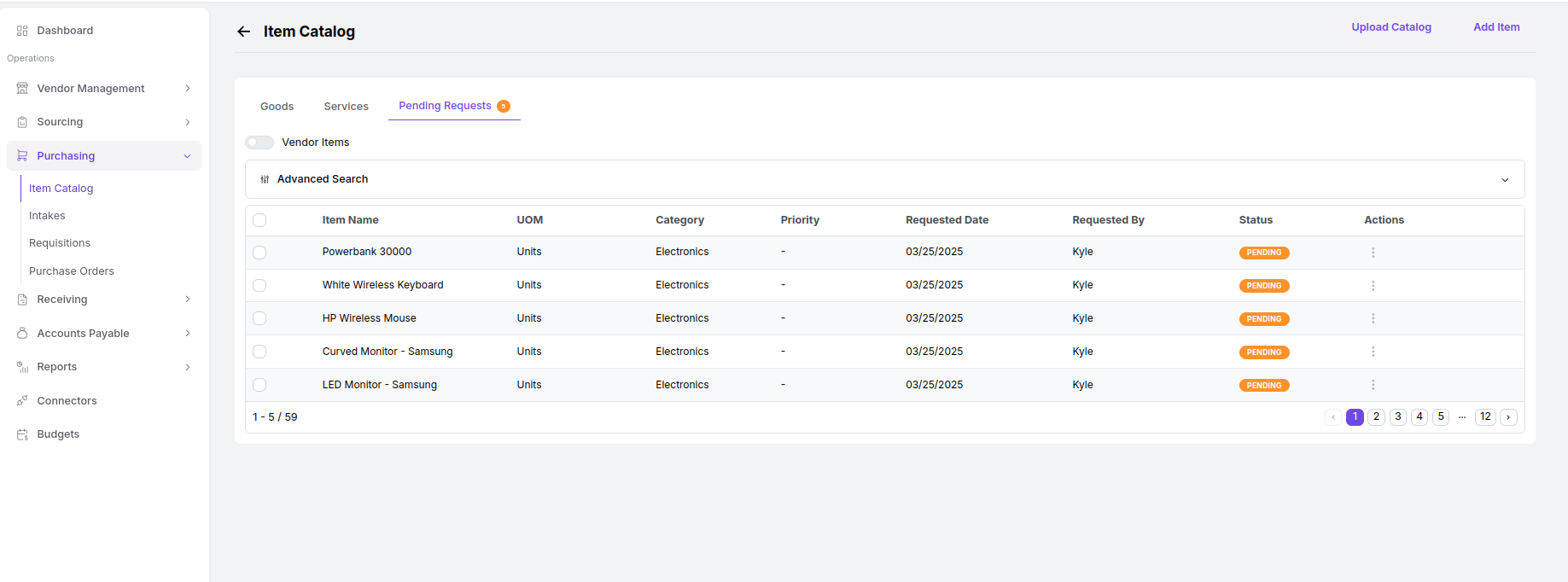 If a team member has submitted a request to add a new item to your list, it will appear under the **"Pending Requests"** tab. By selecting an item, you can access its details and then make a decision.
You have the option to either accept or reject the item request. You can edit any necessary details for an item before accepting. When accepted, the item will be seamlessly integrated into your item catalog.
If a team member has submitted a request to add a new item to your list, it will appear under the **"Pending Requests"** tab. By selecting an item, you can access its details and then make a decision.
You have the option to either accept or reject the item request. You can edit any necessary details for an item before accepting. When accepted, the item will be seamlessly integrated into your item catalog.
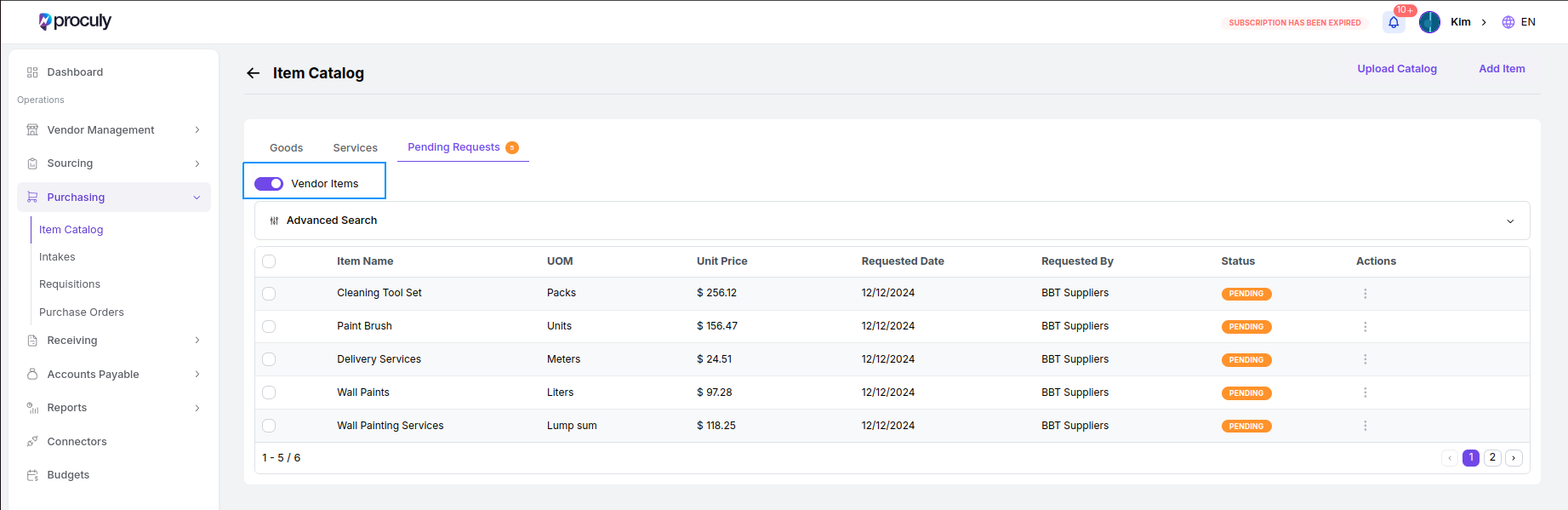 Turning on **"Vendor Items"** will display the list of items added by vendors. You can view the details and choose to either add or reject the items. Once added, the items will appear in your Vendor catalog for selection.
***
## Analytics and Reports
To access reports, simply navigate to the **"Reports"** tab on the left side of your screen. Upon clicking it, you will be directed to the screen displayed below.
Here, you will see options for Insights Report and Purchase Orders Reports.These options provide comprehensive views and analysis of your procurement activities, helping you make informed decisions and track performance metrics effectively.
Turning on **"Vendor Items"** will display the list of items added by vendors. You can view the details and choose to either add or reject the items. Once added, the items will appear in your Vendor catalog for selection.
***
## Analytics and Reports
To access reports, simply navigate to the **"Reports"** tab on the left side of your screen. Upon clicking it, you will be directed to the screen displayed below.
Here, you will see options for Insights Report and Purchase Orders Reports.These options provide comprehensive views and analysis of your procurement activities, helping you make informed decisions and track performance metrics effectively.
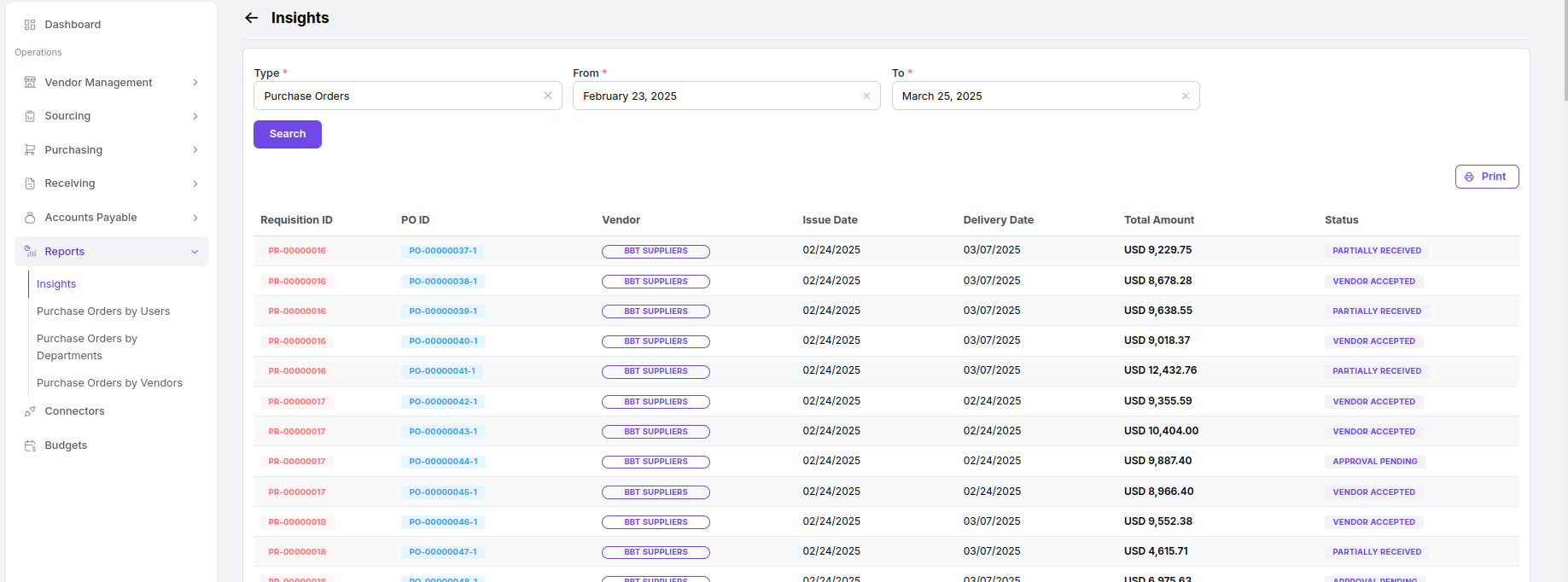
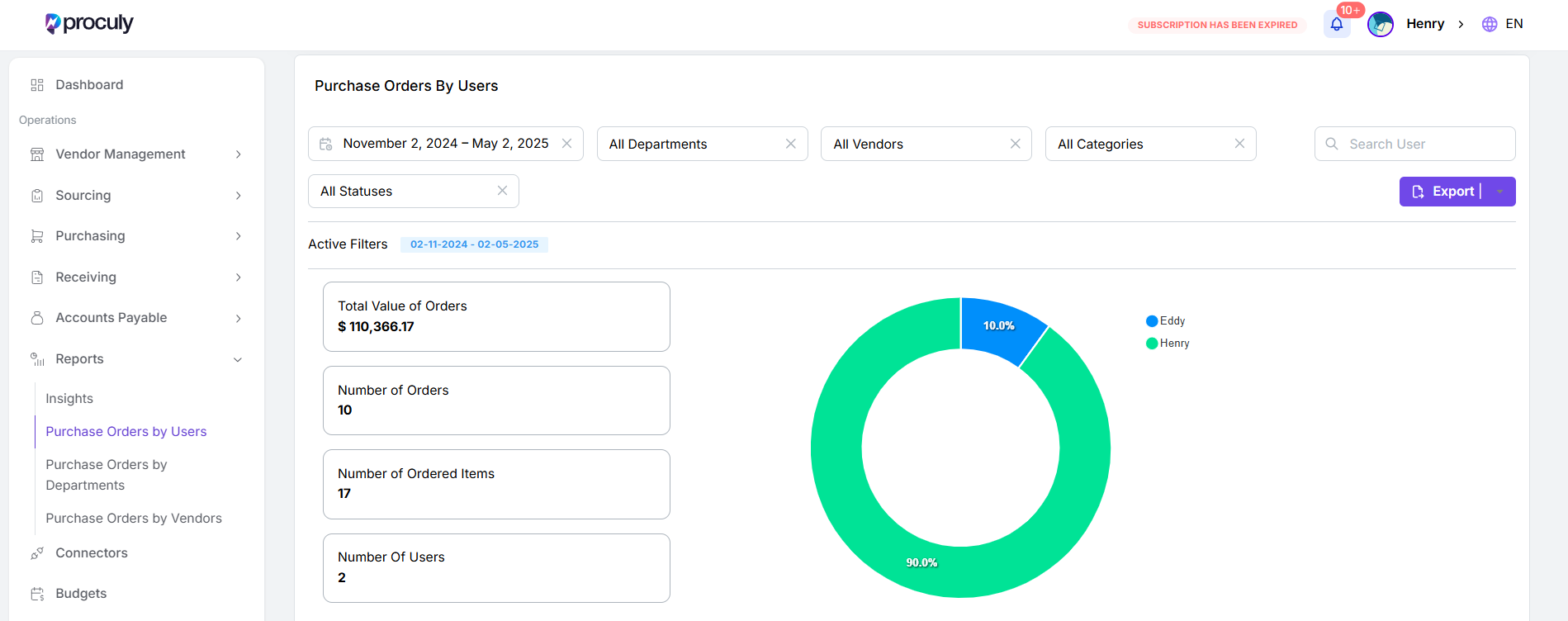 Quickly assess your purchase orders based on users, departments, and vendors. The data presented is real-time and trustworthy.
Furthermore, you have the option to download your reports in CSV/ PDF format.
Quickly assess your purchase orders based on users, departments, and vendors. The data presented is real-time and trustworthy.
Furthermore, you have the option to download your reports in CSV/ PDF format.